Leads & numbers · Article 2 of 10
Add a single number or lead
Add one contact by hand — to your calling list or straight into the pipeline.
Use this for one-off contacts — a walk-in, a referral, someone who called your office. To add many at once, import a file instead.
Add to your calling list (Cold Calls)
- Go to Cold Calls.
- Click Add Cold Calls.
- Fill in Add Phone Number:
- Phone Number (required) — a 10-digit mobile number, or the full international format with country code
- Contact Name — e.g. Rajesh Kumar
- Company / Organization and Email Address
- Campaign — or leave as Default / None
- Priority — Normal, 🔥 High Priority or Low Priority
- Source of Lead — Manual Entry, Cold Outreach, Inbound Call, Website Form, Referral, Social Media, Ad Campaign or Other
- Pincode and Street Address
- Tags (comma-separated) — e.g. real-estate, urgent
- Click Save & Add Number.
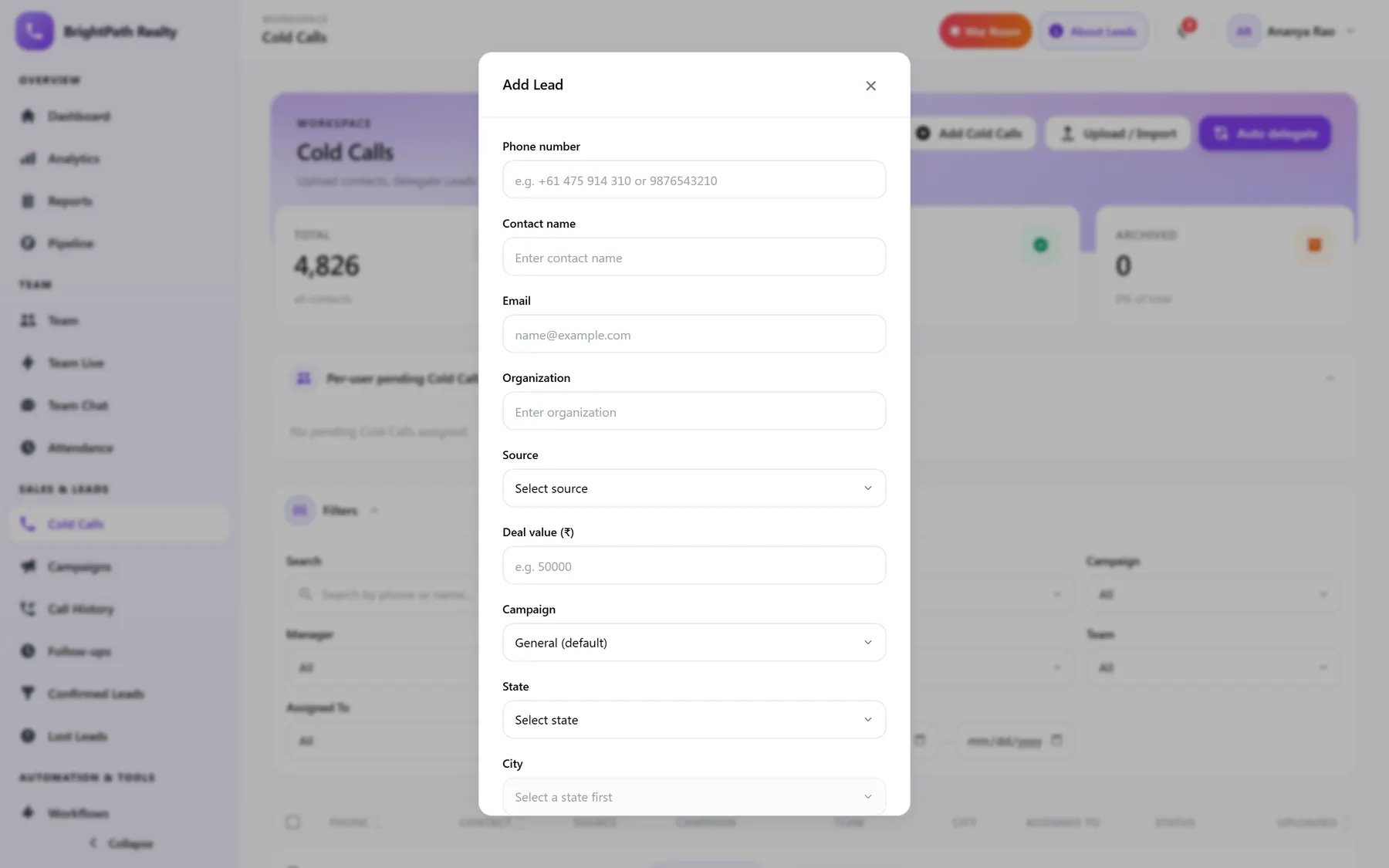
The number appears in Cold Calls as Unassigned. Assign it to an agent so it shows up in their queue.
Add straight into the pipeline (Confirmed Leads)
Use this when you've already spoken to the person and they're interested.
- Go to Confirmed Leads.
- Click Add lead.
- Enter the Phone number, Contact name, Source and Campaign.
- Choose the Initial stage and Lead score (Hot, Warm or Cold).
- Pick Assign to caller.
- Optionally tick Schedule a follow-up and set the Date and Time.
- Click Save lead.
Common questions
"Please enter a valid phone number" The number needs at least 7 digits. For Indian mobiles, just enter the 10 digits — no need for +91.
The number already exists. TeleCalling CRM keeps one record per phone number, so you won't get a duplicate. Search for it in Cold Calls and update it instead.