Team & roles · Article 2 of 6
Edit, suspend or remove a team member
Update an agent's details, reset their password, suspend access or delete them.
All of these actions are in Team → Team Members, in the Actions column at the end of each row.
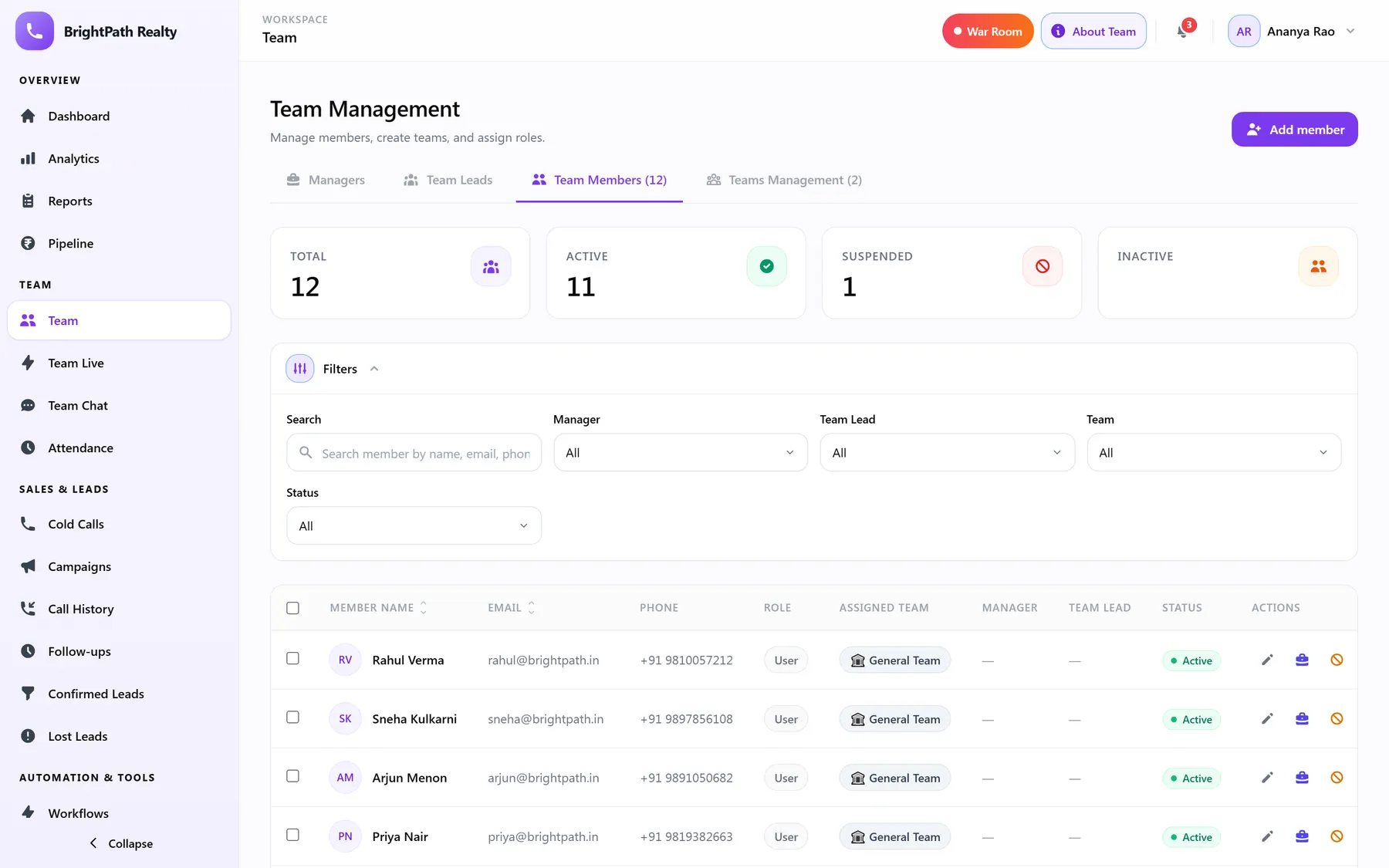
Edit details or reset a password
- Find the member — use Search member by name, email, phone... or the Filters (Manager, Team Lead, Team, Status).
- Click the Edit (pencil) icon.
- Change what you need: name, email, phone, language or team.
- To reset their password, type a new one in the password field. Leave it blank to keep their current password.
- Click Save.
Suspend a member
Suspending stops someone signing in, without losing their call history. Use it when someone is on long leave or has left.
- Click the Suspend member icon on their row.
- Confirm. Their status changes to Suspended.
To bring them back, click Reactivate member.
Tip
Only active people count towards your plan's seats, so suspending someone who has left frees a seat for a new joiner.
Suspend or reactivate several people at once
Tick the checkboxes on the left of each row, then use the bulk action bar to Suspend or Reactivate them together.
Delete a member
- Click the Delete icon on their row.
- Confirm in Delete team member.
Important
Deleting removes the person from your team. If you might need their history later, suspend them instead.
Before someone leaves
- Reassign their pending leads to other agents — see Assign numbers to agents.
- Reassign their open follow-ups from Follow-ups.
- Then suspend or delete them.
Statuses explained
| Status | Can sign in? | Uses a seat? |
|---|---|---|
| Active | Yes | Yes |
| Suspended | No | No |
| Inactive | No | No |