Lead integrations · Article 3 of 6
Google Sheets
Sync rows from a Google Sheet into the CRM as leads — once, or automatically every few minutes.
If your leads land in a Google Sheet — from a website form, an agency or Google Forms — TeleCalling CRM can pick up new rows automatically.
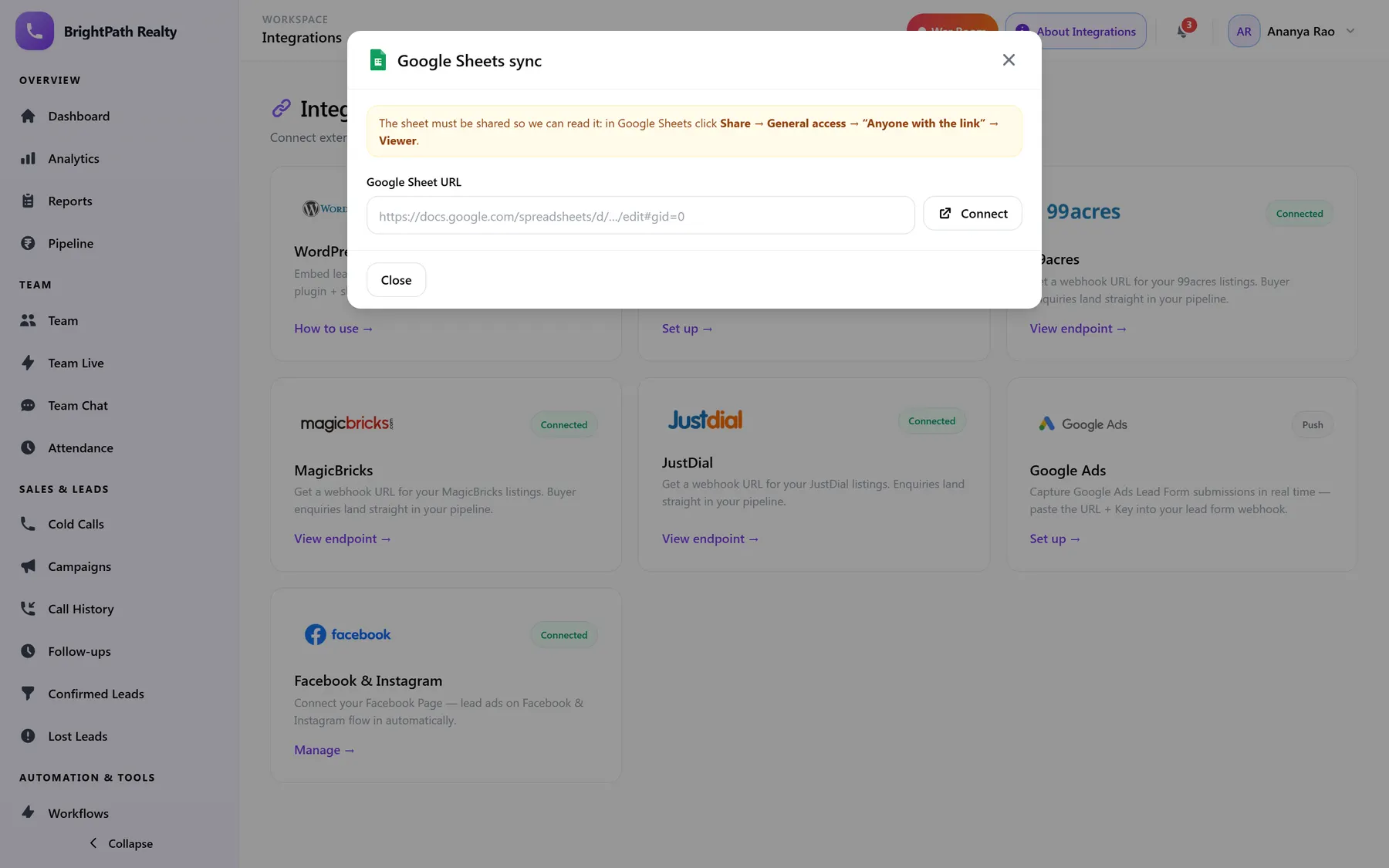
1. Share the sheet
The sheet must be shared so we can read it: in Google Sheets click Share → General access → "Anyone with the link" → Viewer.
2. Connect it
- Go to Integrations and open Google Sheets.
- Paste the Google Sheet URL and click Connect.
3. Map columns
For each Sheet column, choose what it Maps to — Phone number, Contact name, Email, City, or one of your custom fields. The Sample column shows a value from your sheet so you can check. Phone number is required.
4. Choose sync settings
| Setting | Options |
|---|---|
| Auto-sync | Disabled (Manual only) or Enabled (Auto-sync) |
| Sync frequency | Every 10 mins, 15 mins, 30 mins or every hour |
| Import as | Lead (pipeline) or Number only (cold calling list) |
| Assign | Round-robin or Unassigned |
| Source tag | The source name to tag these leads with |
| Stage | Starting pipeline stage |
Click Sync to pull rows now. Total synced shows how many leads have come in.
Already-imported phone numbers, DNC entries and invalid numbers are skipped automatically on every sync.
To stop syncing, click Disconnect.