Automation · Article 2 of 3
Build your first workflow
Step by step — send every Interested lead to your closer automatically. Plus ready-made recipes to copy.
In this example, every lead an agent marks Interested goes straight to your closer, Priya, so she can book the site visit.
Steps
- Go to Workflows (under Automation & Tools).
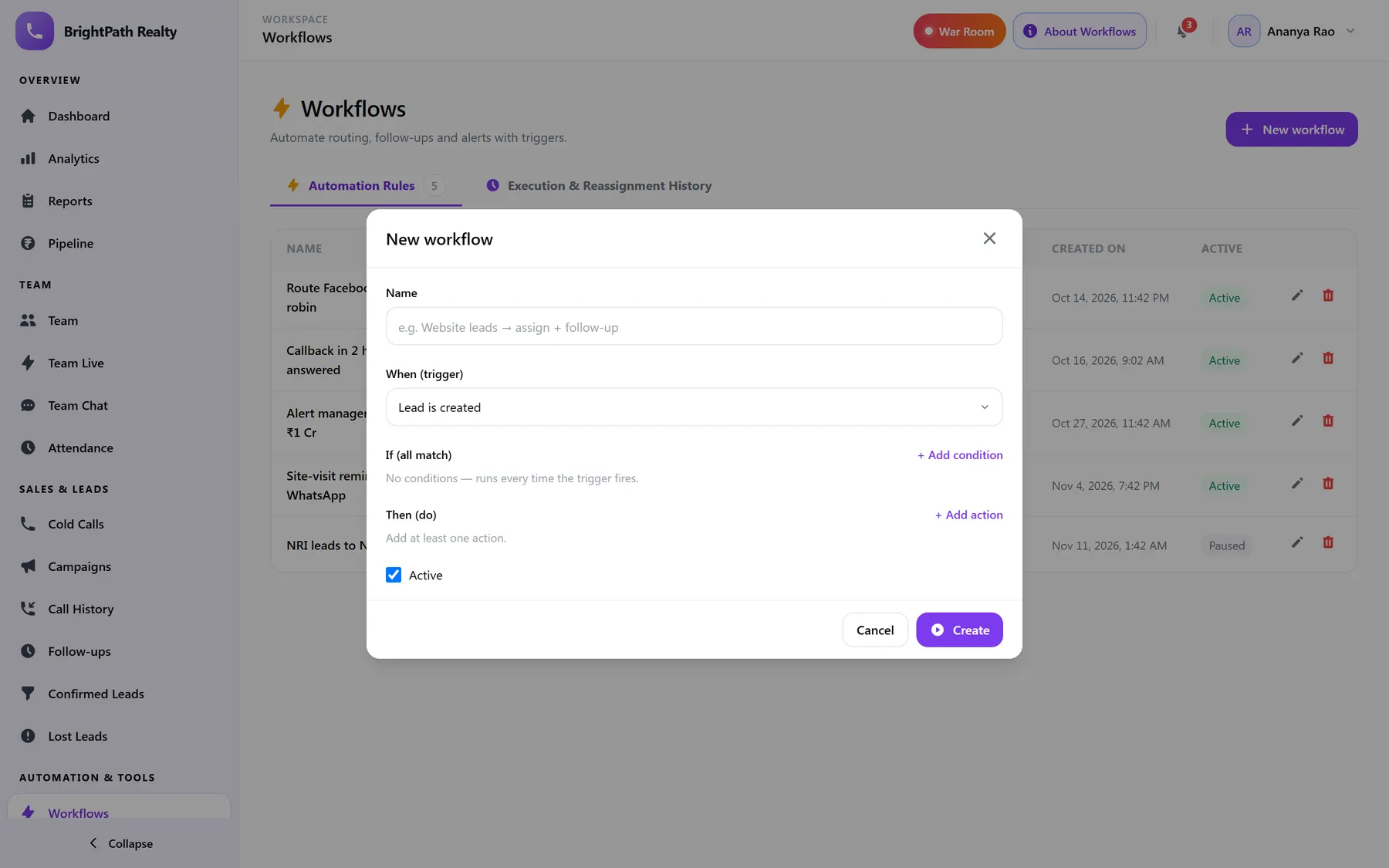
- Click New workflow.
- Title — give it a clear name, e.g. Interested leads → Priya.
- When (trigger) — choose When a call is logged.
- If (all match) — add a condition: status equals Interested.
- Then (do) — add the action Assign to caller / user, choose Specific user and pick Priya Nair.
- Leave Active ticked and save.
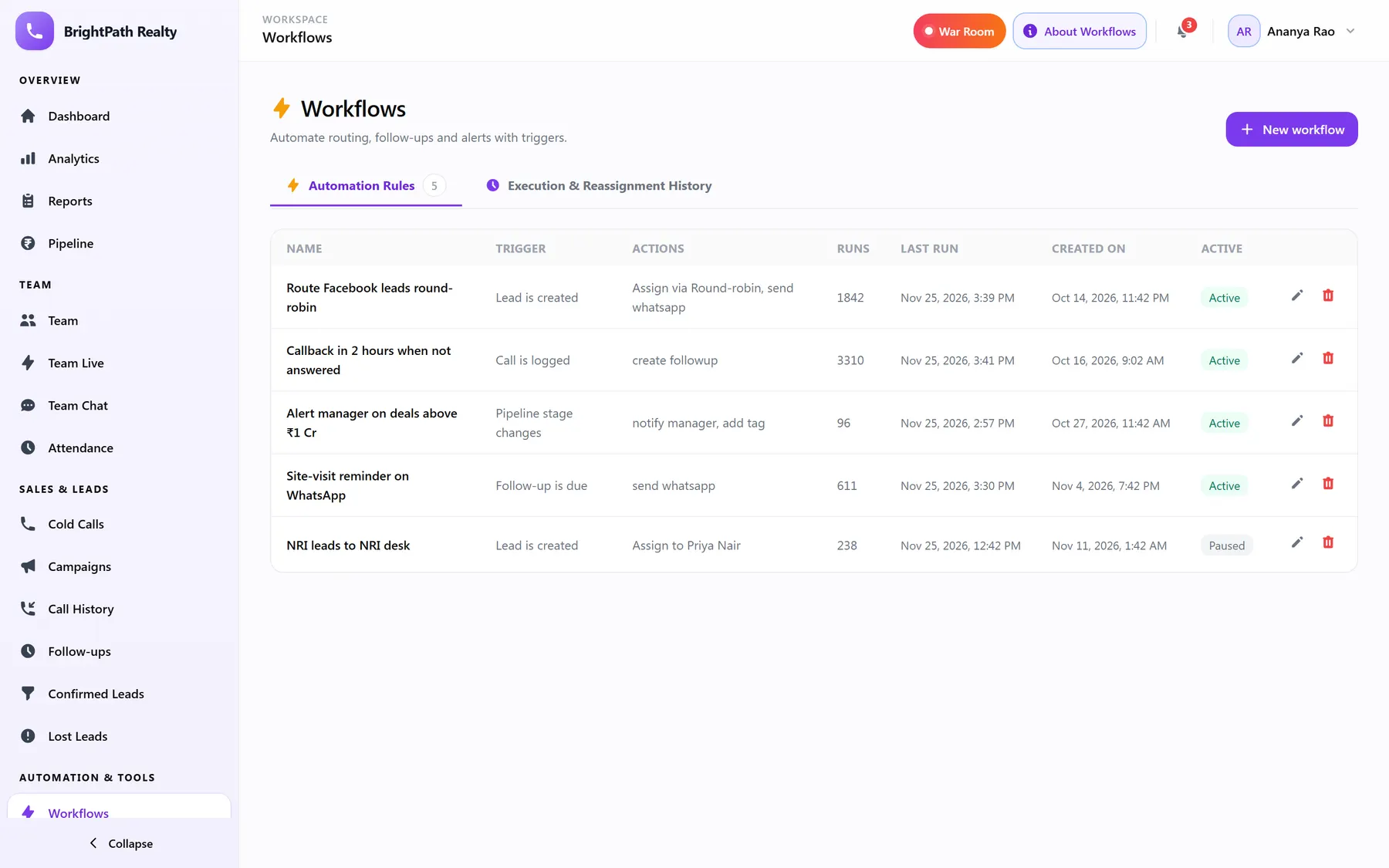
The workflow now appears in Automation Rules, with its Trigger, Actions, number of Runs and Last Run.
Test it
Ask an agent to log a test call as Interested. Within a few seconds the lead should be assigned to Priya. Check the Execution & Reassignment History tab to see it — see Workflow history.
Ready-made recipes
| Goal | When | If | Then |
|---|---|---|---|
| Hot leads to your closer | When a call is logged | status equals Interested | Assign to Specific user — your closer |
| Share callbacks fairly | When a call is logged | status equals Callback | Assign to Round-robin |
| Senior agent for negotiation | When a lead's stage changes | stage equals Negotiation | Assign to Specific user — senior agent |
| Fresh eyes on not-lifting leads | When a call is logged | status equals Not Lifting | Assign to Round-robin |
Turn off or delete a workflow
- Untick Active to pause it without losing it.
- Click Delete workflow to remove it.
Common questions
The workflow didn't run. Check it's Active, the condition value matches exactly (e.g. the status name), and the person you assign to is an active user.
Can two workflows act on the same call? Yes — every active workflow whose conditions match will run. Avoid two workflows that assign the same leads to different people.