Monitoring & reports · Article 5 of 7
AI call analysis
Get a transcript, summary, key points, action items and coaching tips for recorded calls — plus the customer's tone and reaction.
AI call analysis listens to a recorded call and tells you what happened — without you having to listen to all of it.
What you get
| Section | What it is |
|---|---|
| Summary | What the call was about, in a few lines |
| Key points | The important things the customer said — budget, needs, objections |
| Action items | What the agent should do next |
| Coaching | Tips for the agent — what went well and what to improve |
| Transcript | The full conversation in text |
| Customer reaction | The customer's emotional reaction, speech manner / tone and vocal pitch & volume |
Turn it on
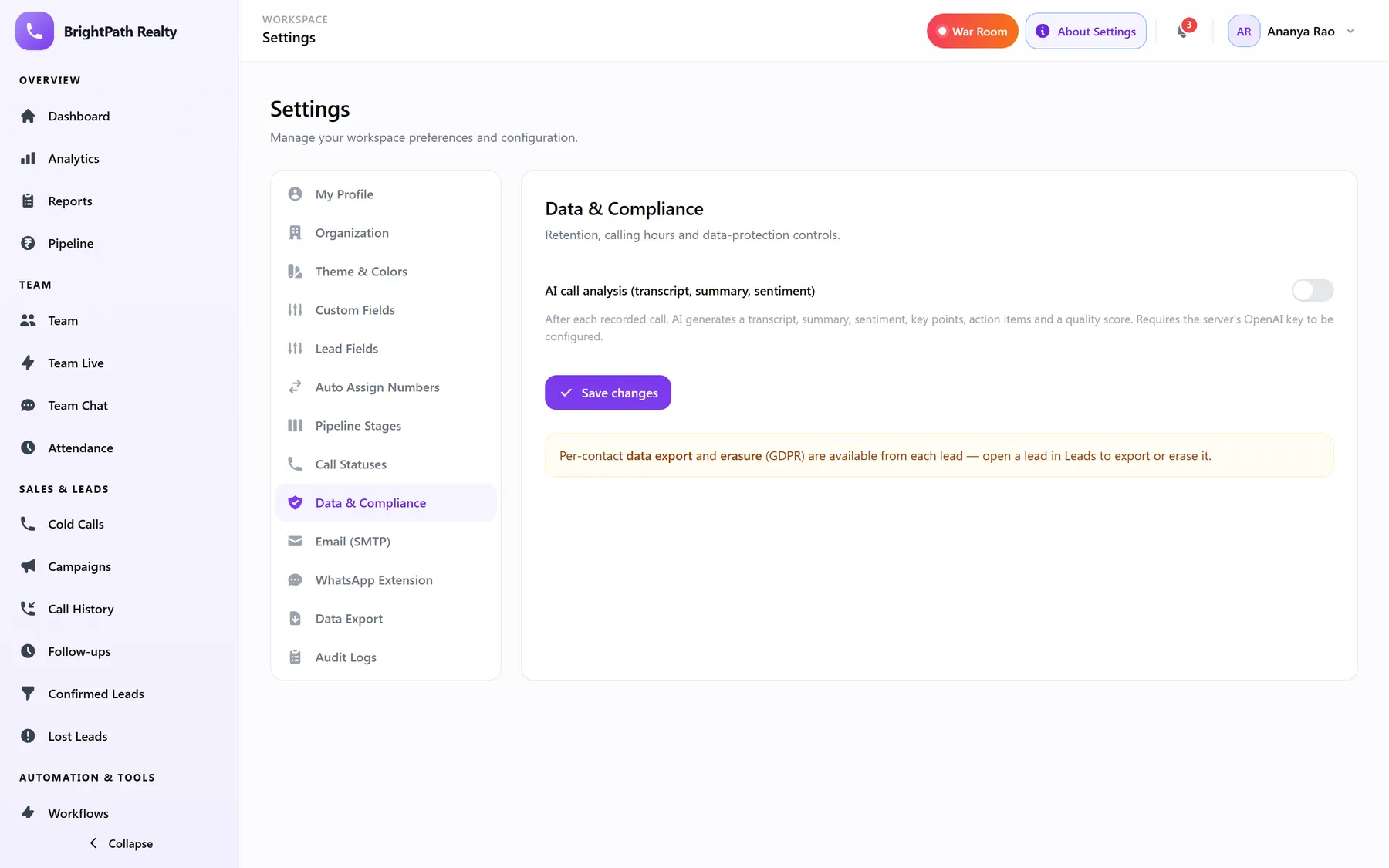
- Go to Settings → Data & Compliance.
- Switch on AI call analysis (transcript, summary, sentiment).
- Click Save changes.
Analyse a call
- Open a call in Call History (View details) or open a lead in Confirmed Leads.
- Under AI insights, click Analyze Recording Now (or Analyze).
- You'll see Analyzing call conversation… — it takes a short while for longer calls. Click Check Status to refresh.
- To run it again, click Re-analyze.
The call needs a recording — see Call history & recordings.
Use it for coaching
- Check the AI call quality score on the dashboard every week.
- Listen to the calls with the lowest scores together with the agent, using the Coaching notes.
Common questions
"No AI analysis available for this recording yet." Click Analyze Recording Now.
"AI Analysis failed." Usually the recording is too short or silent. Click Retry Analysis.