Messaging · Article 1 of 4
Message templates
Ready-made WhatsApp and email messages agents send in one tap — with the customer's name filled in automatically.
Message templates save your agents from typing the same message again and again. Agents pick a template, and the customer's details are filled in for them.
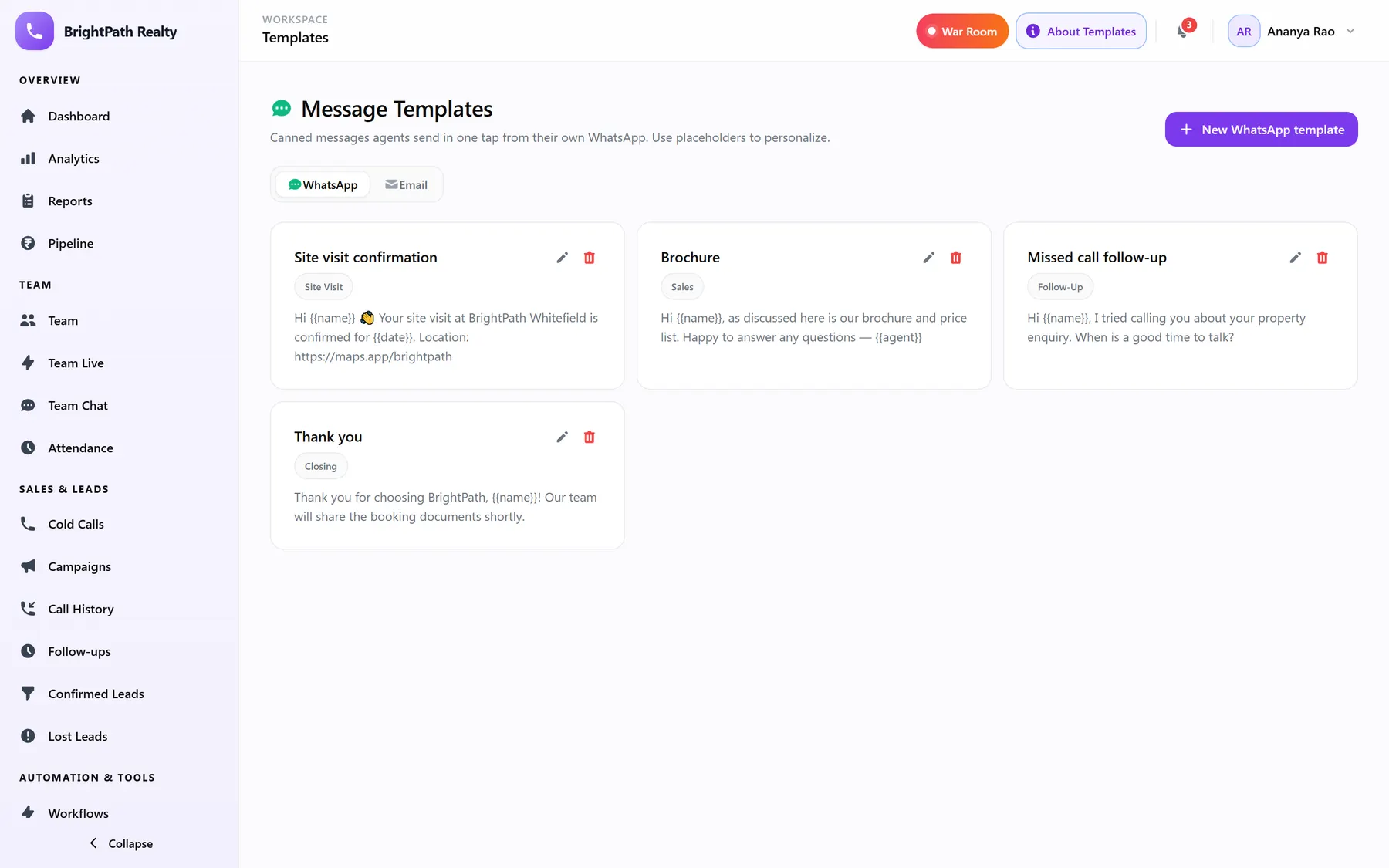
Create a template
- Go to Templates (under Automation & Tools).
- Pick the channel tab — WhatsApp or Email.
- Click New WhatsApp template (or the email equivalent).
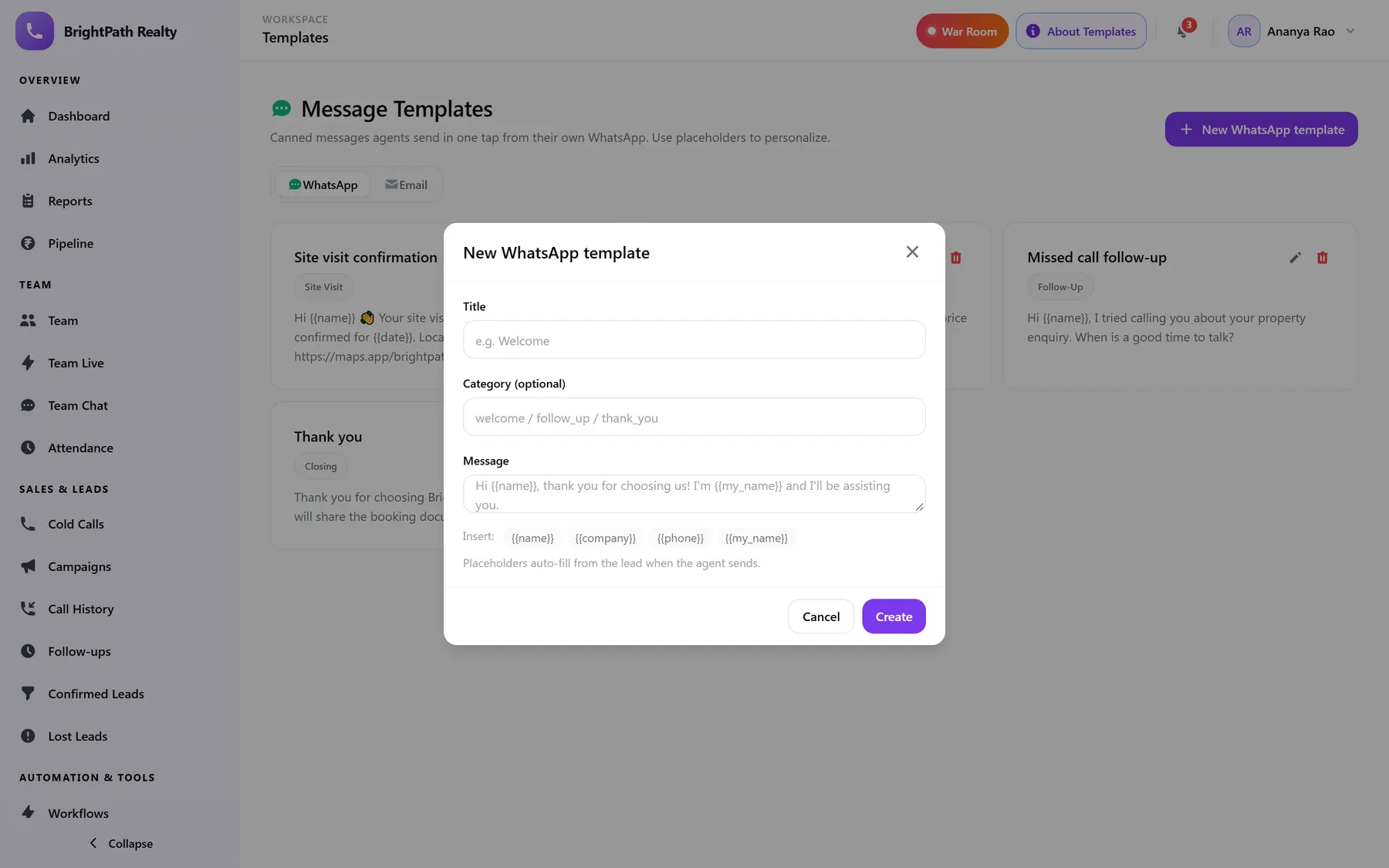
- Fill in:
- Title — e.g. Site visit confirmation
- Subject — email only
- Category (optional) — e.g. welcome, follow_up, thank_you
- Message — use Insert: to add placeholders
- Save.
Placeholders
Placeholders auto-fill from the lead when the agent sends.
| Placeholder | Becomes |
|---|---|
{{name}} | The customer's name |
{{phone}} | The customer's phone number |
{{my_name}} | The agent's name |
{{company}} | Your company name |
Example: Hi {{name}}, thanks for speaking with me today. As discussed, here is the brochure for Whitefield Heights. — {{my_name}}, {{company}}
How agents use templates
In the agent workspace, on a lead, the agent taps WhatsApp or email, picks a template, checks the message and sends it. WhatsApp templates open WhatsApp with the message ready.
For WhatsApp broadcasts to many leads at once, you need Meta-approved templates — see WhatsApp Business.