Leads & numbers · Article 9 of 10
Lead fields, sources and custom fields
Capture the information that matters to your business — budget, property type, course, loan amount — on every lead.
Every lead has standard fields such as phone, name, email, organisation, source, stage, score and tags. You can add your own fields for anything specific to your business.
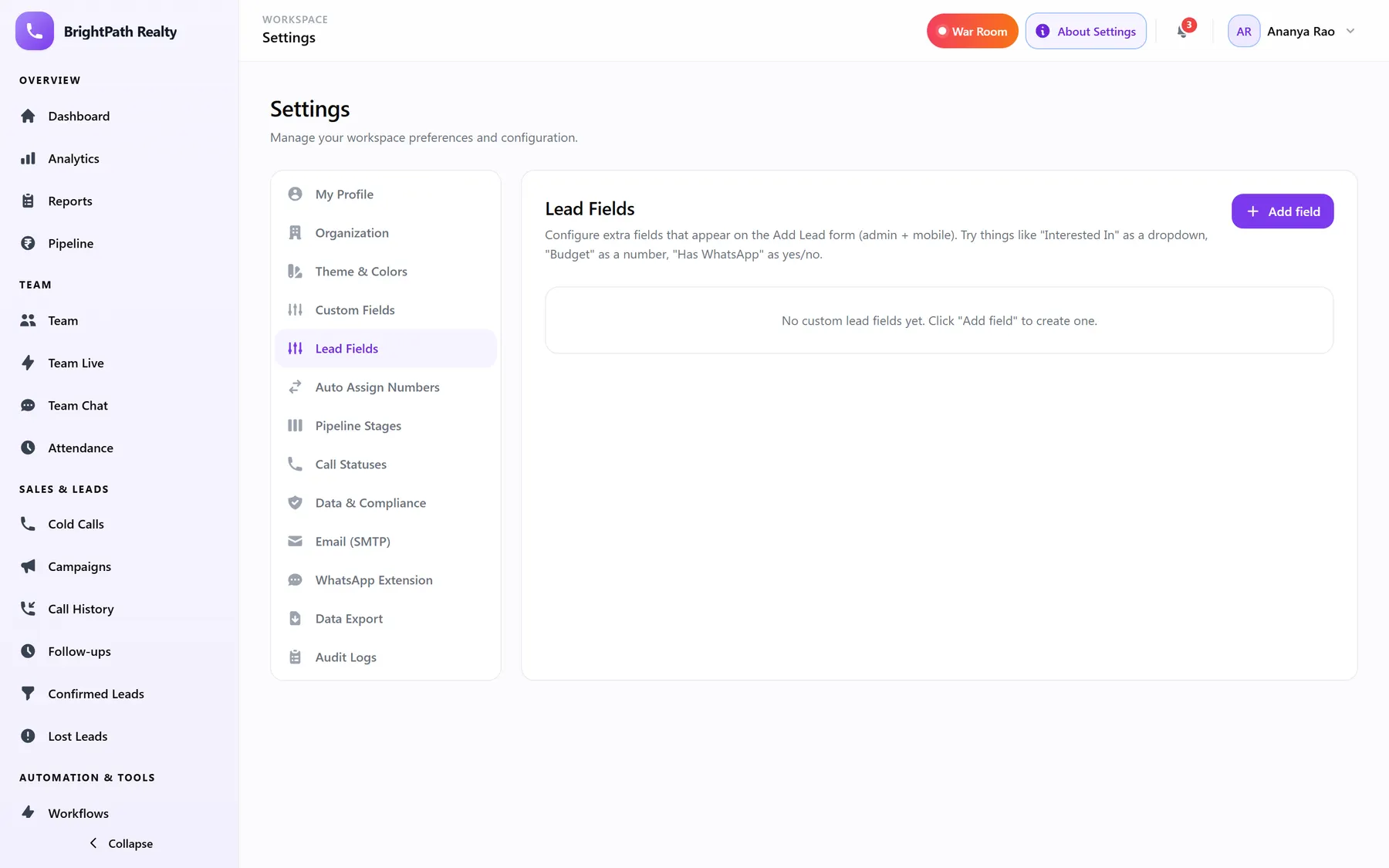
Custom lead fields
Examples: Budget, Property type, Configuration (2/3 BHK), Course interested in, Loan amount, Vehicle model.
Add a field
- Go to Settings → Lead Fields.
- Click Add field.
- Fill in:
- Label — what agents will see, e.g. Interested In
- Type — see the table below
- Options — for dropdowns, radio buttons and checkboxes: type an option and press Enter
- Placeholder and Helper text (optional) — hints shown in the empty box
- Required field — agents must fill it in
- Show on form — show it when adding or editing a lead
- Check the Preview and save.
Field types
| Type | Use it for |
|---|---|
| Single-line text | Short answers — a name, a reference number |
| Multi-line text | Longer notes |
| Number | Budget, quantity, age |
| Dropdown | Pick one from a list — e.g. 1 BHK / 2 BHK / 3 BHK |
| Radio buttons | Pick one, all options visible |
| Checkboxes (multi-select) | Pick several — e.g. amenities wanted |
| Yes / No | A simple yes or no — Loan required? |
| Date / Date & Time | Possession date, preferred visit time |
Use Move up / Move down to change the order, the pencil to edit, and the bin to delete.
Custom fields can be filled in by agents in the app, mapped when importing a file, and mapped from Google Sheets.
Lead sources and stage options
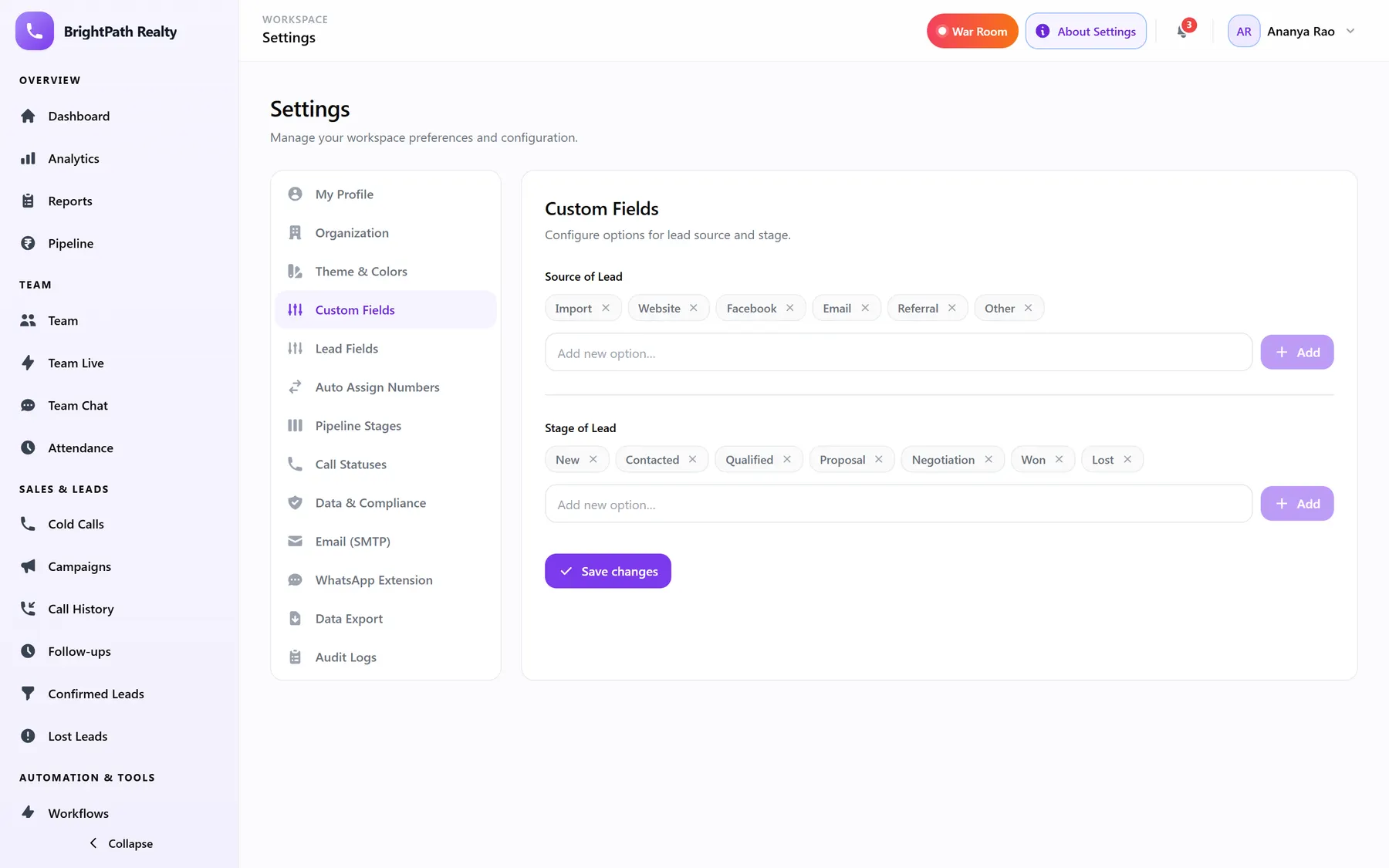
Settings → Custom Fields holds the dropdown options for:
- Source of Lead — Facebook Ads, 99acres, Walk-in, Referral…
- Stage of Lead
Type a new option and click Add. Keep the list short and consistent — it powers the Source filter and source reports everywhere.