Cloud calling · Article 4 of 4
Calling from the browser (for agents)
How agents call from the web workspace — choose browser or mobile bridge, test the microphone, dial and use the Smart Auto Dialer.
Once your admin has connected cloud calling, you can call from the web workspace at admin.telecallingcrm.com.
1. Choose how you call
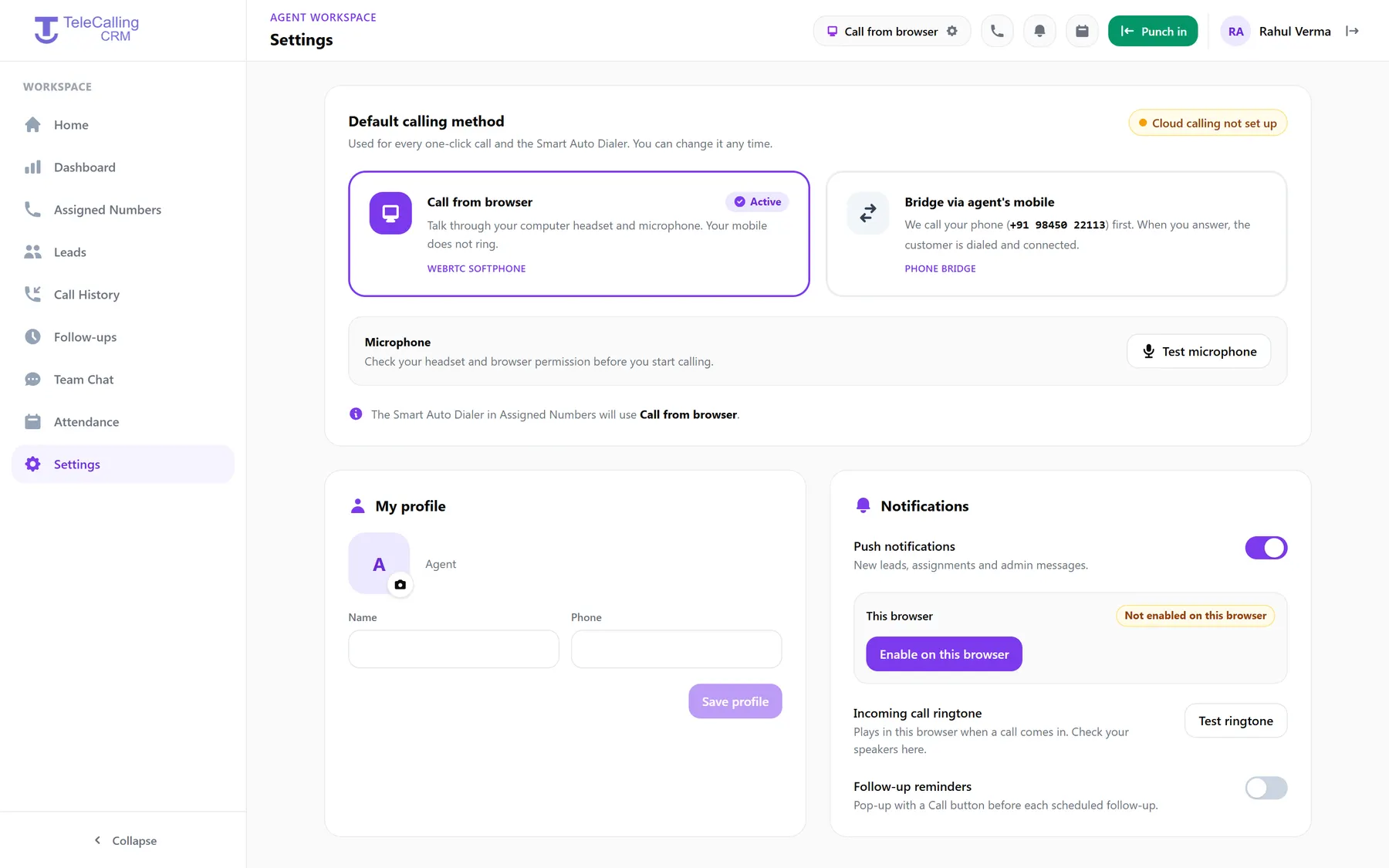
Open Settings in your workspace. Under Default calling method, choose:
- Call from browser — talk through your computer headset and microphone. Your mobile does not ring.
- Bridge via agent's mobile — we call your phone first, then connect the customer.
This is used for every one-click call and the Smart Auto Dialer. You can change it any time, or use Call from browser in the top bar.
2. Test your microphone
Under Microphone, click the test button. You should see Microphone test passed successfully! If not, check your headset and allow microphone access in the browser.
3. Make a call
- From a lead — click Call on any lead in Assigned Numbers, Leads or Follow-ups.
- Any number — click the phone icon in the top bar to open Dial a number. If the number isn't in your leads yet, it's saved to your queue before calling.
During the call you can open the keypad and click End Call to hang up. Then fill in the Call Summary.
4. Smart Auto Dialer
Work through your list without clicking each number:
- Go to Assigned Numbers and click Smart Auto Dialer.
- The dialer shows the next lead with Call now, WhatsApp, SMS and Skip.
- After each call, save the outcome and the dialer moves to the next lead.
- At the end you'll see Queue completed! — click Restart queue or Return to list.
Do-Not-Call numbers are skipped automatically.