Getting started · Article 4 of 7
Log in and reset your password
Sign in as an admin or agent, understand the one-device rule, and recover a forgotten password.
Admins, managers, team leads and agents all sign in at the same page. TeleCalling CRM opens the right screen for each person automatically — the admin panel for admins and managers, and the agent workspace for telecallers.
Sign in
- Go to admin.telecallingcrm.com/login.
- Enter your Email or Phone and your Password.
- Tick Keep me signed in on this device if this is your own computer.
- Click Sign in.
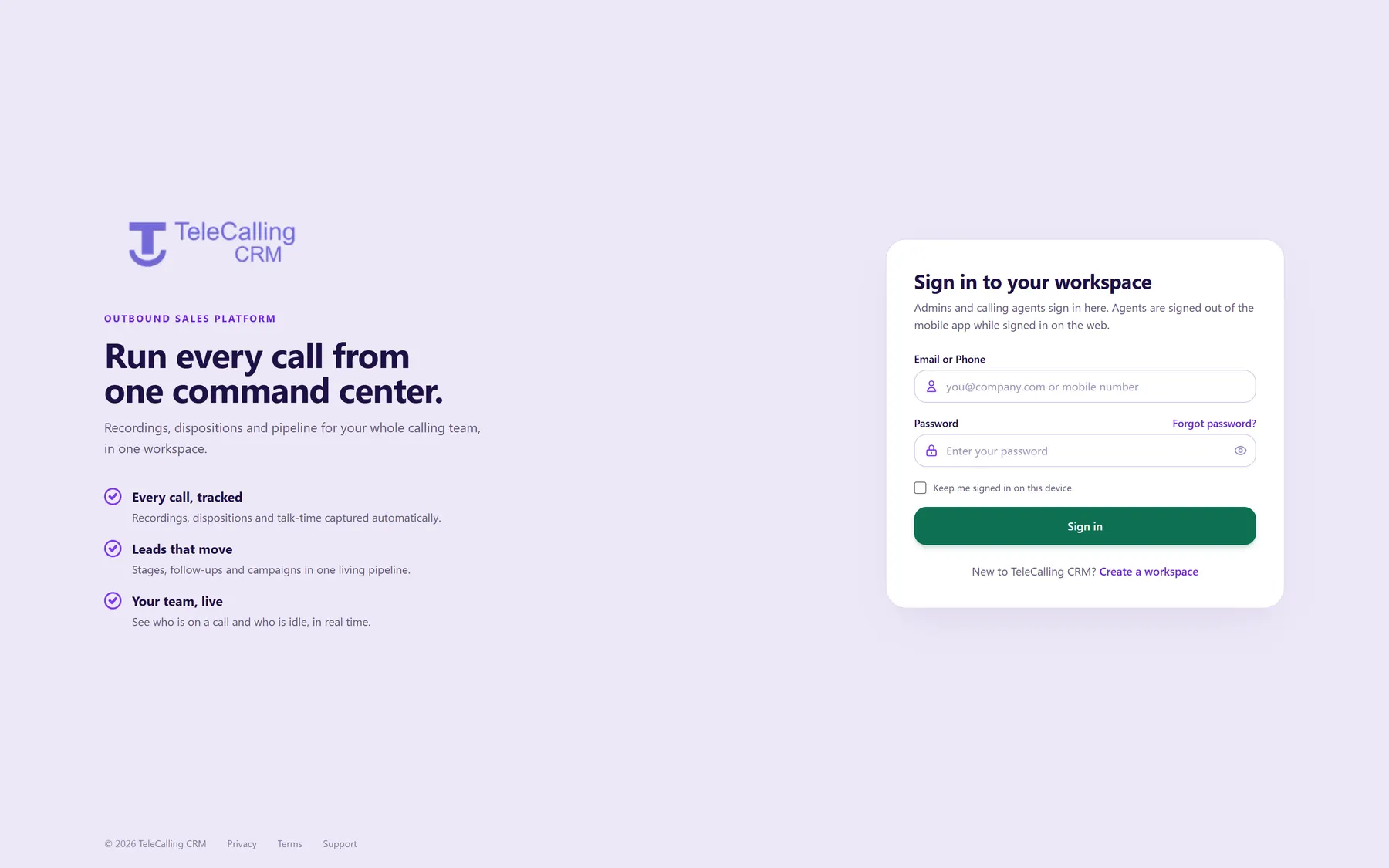
The one-device rule for agents
An agent can be signed in on only one device at a time — the mobile app or the web workspace. This keeps call logs and attendance accurate.
If an agent signs in on the web while the app is signed in, they'll see Signed in on another device. Clicking to continue signs them out of the other device. Calls already in progress on that device are not affected.
If you see "You were signed out because your account signed in on another device", someone (or you) signed in elsewhere. Just sign in again.
Forgot your password?
- On the sign-in page, click Forgot password?
- Enter your Email and click to get a code.
- Enter the 6-digit code we email you, then click Verify code. You can Resend code after the timer.
- Choose a New password — a strong one you haven't used before.
- You'll see All set — Your password has been updated. Click Continue to sign in.
Agents who forget their password
An admin can set a new password for any agent from Team → Team Members — see Edit, deactivate or remove a team member.
Common questions
The code never arrives. Check your spam folder and wait for the resend timer. Make sure you're using the email the account was created with.
I'm an agent and I land on the admin panel. You're probably using an admin login. Agents have their own credentials created by their admin.