Team & roles · Article 1 of 6
Add telecallers to your team
Create logins for your agents so they can start calling from the app or the web.
Each telecaller (agent) needs their own login. Once you add them, they can sign in to the mobile app or the web agent workspace, and every call they make shows up in your reports.
Before you start
- Check how many seats your plan has. You'll see "Seats · 12 of 15" on the Billing page. Every active agent, team lead and manager uses one seat. If you've used them all, buy extra user seats first.
- Keep each agent's name, mobile number and (optionally) email ready.
Steps
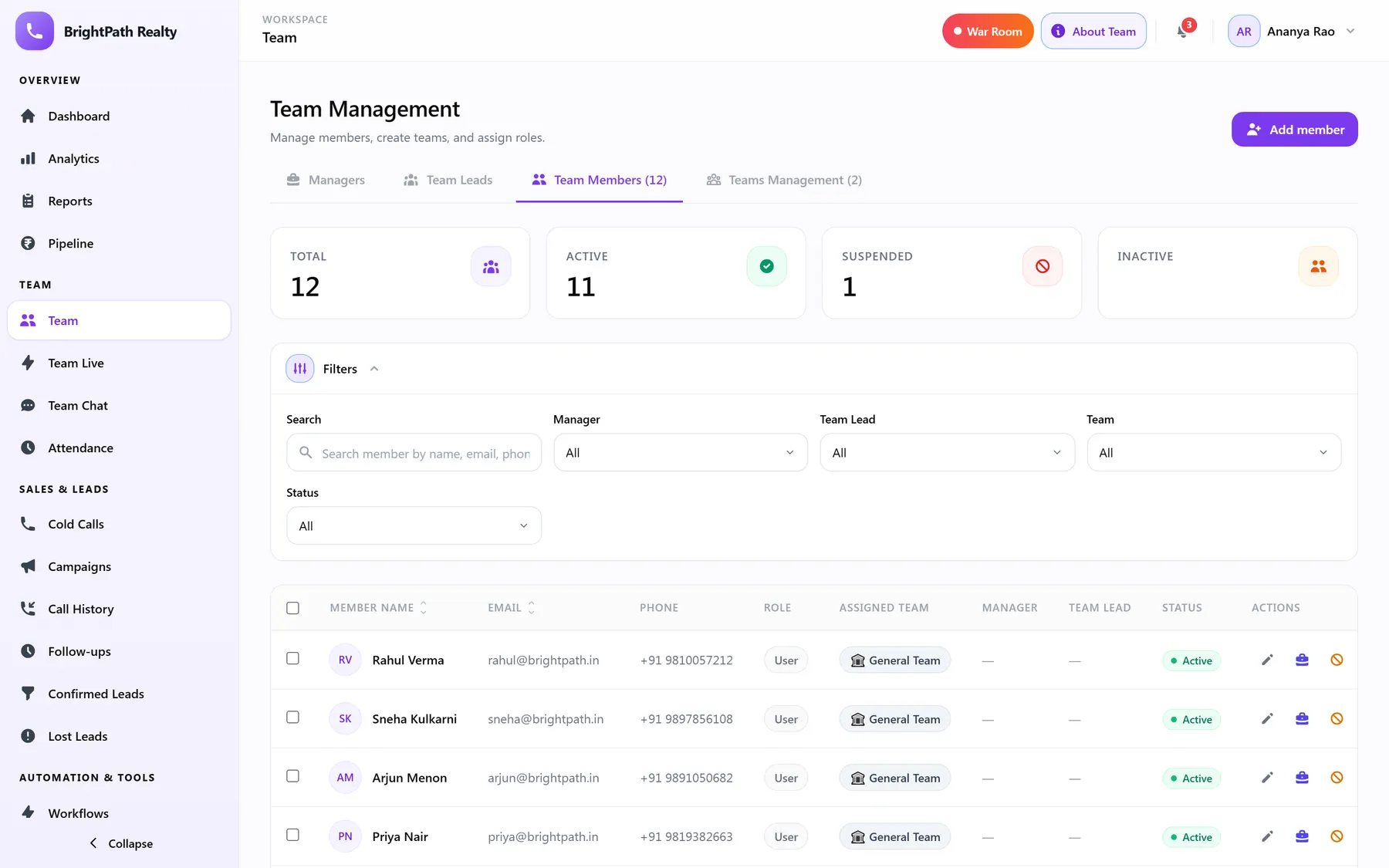
- In the sidebar, click Team.
- Open the Team Members tab.
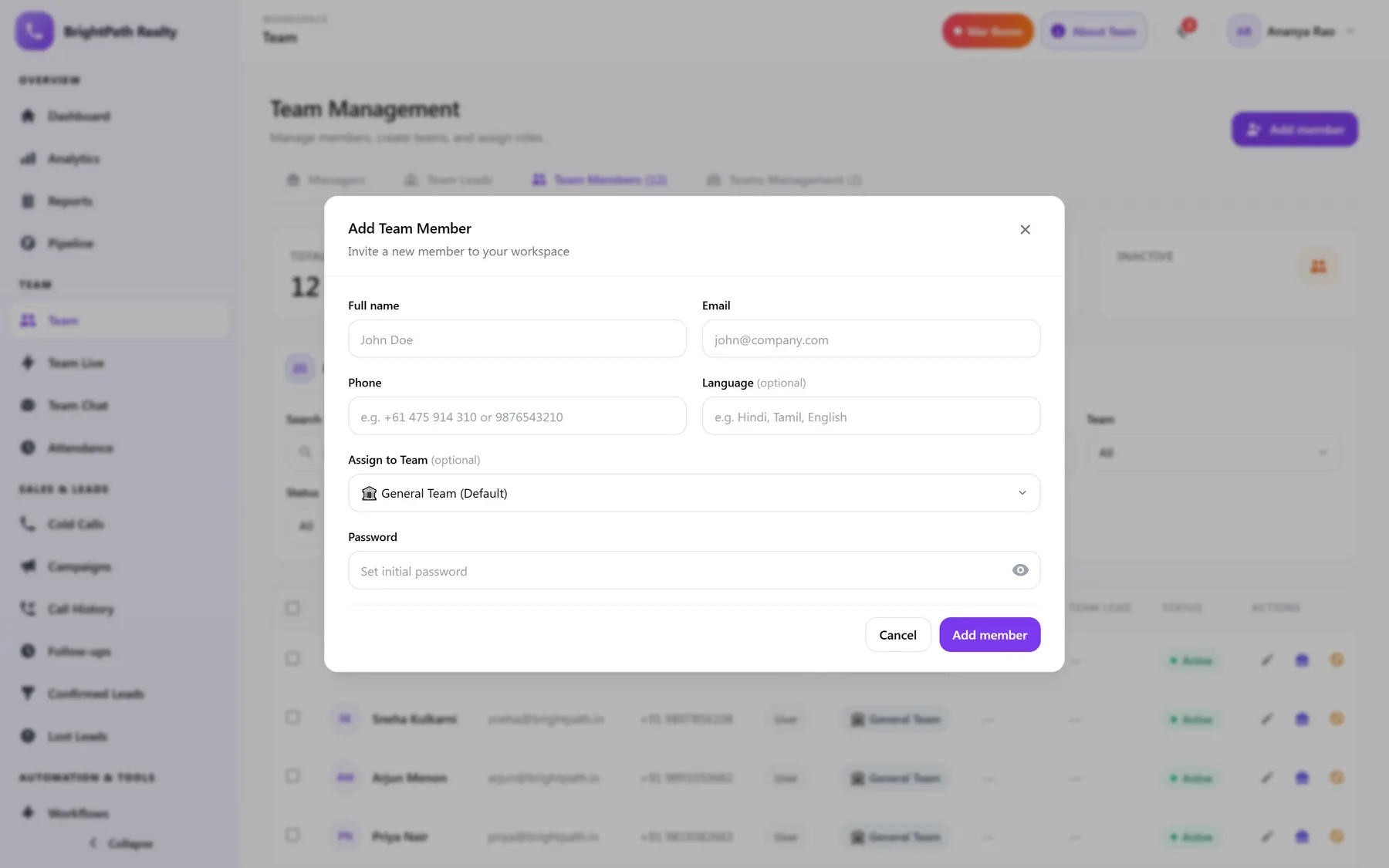
- Click Add member (top-right).
- Fill in Add team member:
- Full name — e.g. Rahul Verma
- Email — they can sign in with this or their phone number
- Phone — their mobile number
- Language — the languages they speak, e.g. Hindi, Tamil, English
- Assign to Team — optional; see Teams
- Password — set their first password (at least 8 characters)
- Status — leave as Active
- Click Save.
The new agent appears in the Team Members list straight away.
Share the login with the agent
Send the agent:
- The app link — Install the mobile app — or the web address admin.telecallingcrm.com.
- Their email or phone and the password you set.
They should change their password after the first sign-in.
What the agent can do
Agents see only the leads assigned to them. They can log calls, edit lead details, change a lead's stage or mark it lost, transfer a lead to a colleague and add a number to the Do-Not-Call list.
Common questions
"Plan limit of seats reached" Your plan's user seats are all in use. Remember that active team leads and managers use seats too. Buy extra seats, upgrade your plan, or suspend someone who has left.
Can an agent use the app and the web at the same time? No — an agent can be signed in on one device at a time. See Log in and reset your password.
How do I add a team lead or manager? They're added from their own tabs — see Managers & team leads.