Follow-ups · Article 2 of 3
Manage follow-ups
See what's due, overdue and done — in a list or calendar — and complete, reschedule or reassign follow-ups.
The Follow-ups page shows every scheduled callback across your team.
The summary cards
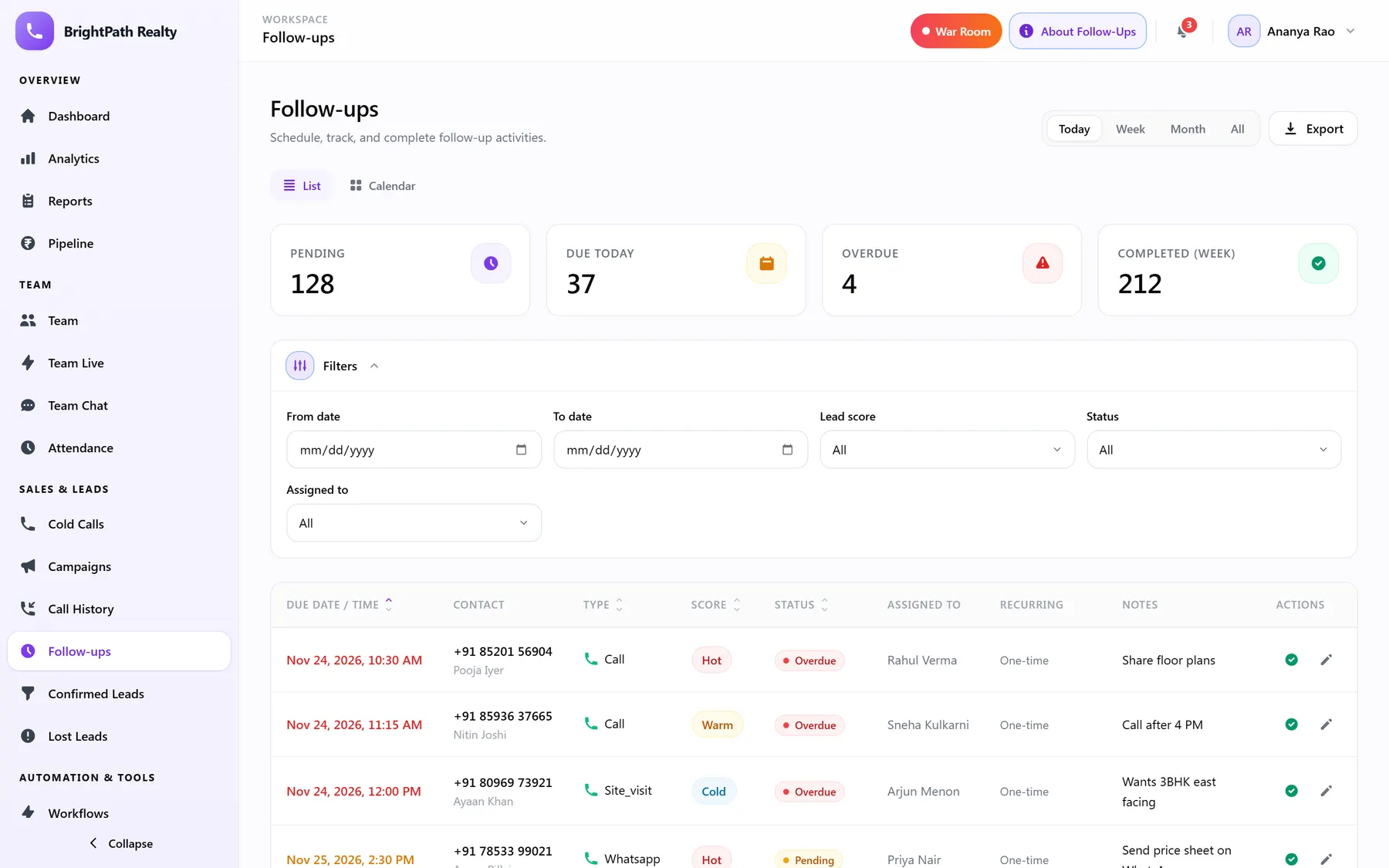
At the top: Pending, Due today, Overdue and Completed (week). Check Overdue first thing every morning — these are customers waiting to hear from you.
List or calendar
- List — a table with Due date / time, Contact, Type, Score, Status, Assigned to, Recurring and Notes.
- Calendar — a month view. Click a day to see that day's follow-ups.
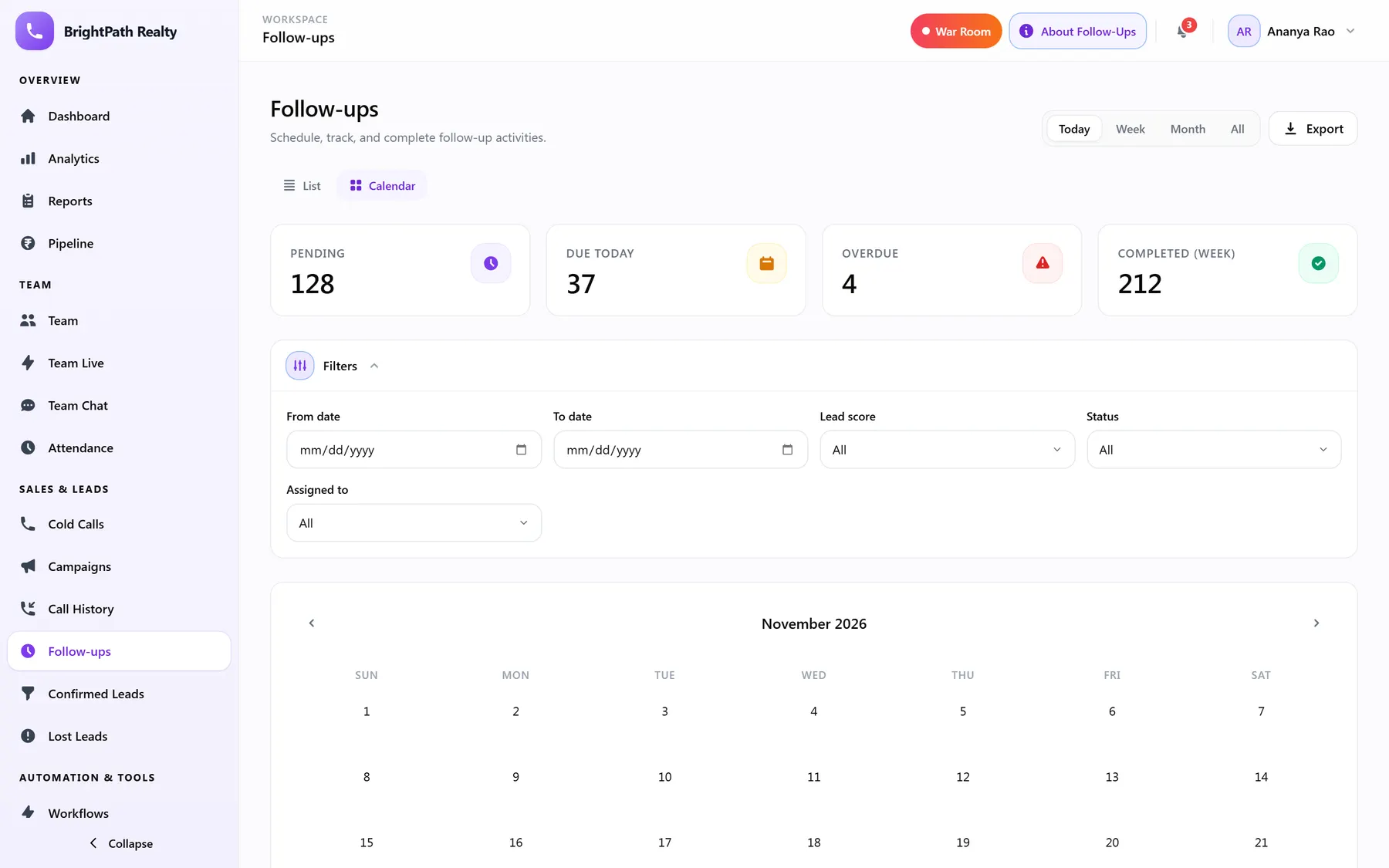
Use Today / Week / Month / All and the filters (From date, To date, Lead score, Status, Assigned to, Search phone number…) to narrow the list.
Complete a follow-up
- Click Mark complete on the row.
- Note What was the outcome? and update the lead score.
- Save — you'll see Follow-up updated.
Edit or reschedule
Click Edit to change the date, time, type, score, recurrence or notes.
Agents can also reschedule from their workspace with one tap: In 1 hour, Tomorrow 10 AM, In 3 days or Next week, plus an Agenda for next call.
Export
Click Export to download the follow-ups for your filters.
When an agent leaves, filter Assigned to = that agent and Status = Pending, then reassign their follow-ups so no customer is forgotten.