Attendance & shifts · Article 3 of 3
Auto-reassign leads when agents are absent or leave early
Automatically move pending leads from absent, late or early-leaving agents to agents who are working.
When an agent doesn't show up, or leaves early, their pending leads would sit untouched for the whole day. Auto reassignment fixes this: TeleCalling CRM moves those leads to colleagues who are working, so no lead waits.
When leads are reassigned
| Situation | Rule | What happens |
|---|---|---|
| Absent or late | Shift Start Absence Rule | Agents who haven't punched in by shift start + punch-in grace have their pending leads moved to agents who are on shift. |
| Leaves early / half day | Mid-Shift Punch-Out Rule | When an agent punches out before shift end − end-of-day grace, their pending leads are moved to agents still on shift. |
Example: shift starts at 10:00 AM with 30 minutes of punch-in grace. At 10:30 AM, anyone who hasn't punched in has their pending leads shared among those who have.
Turn it on
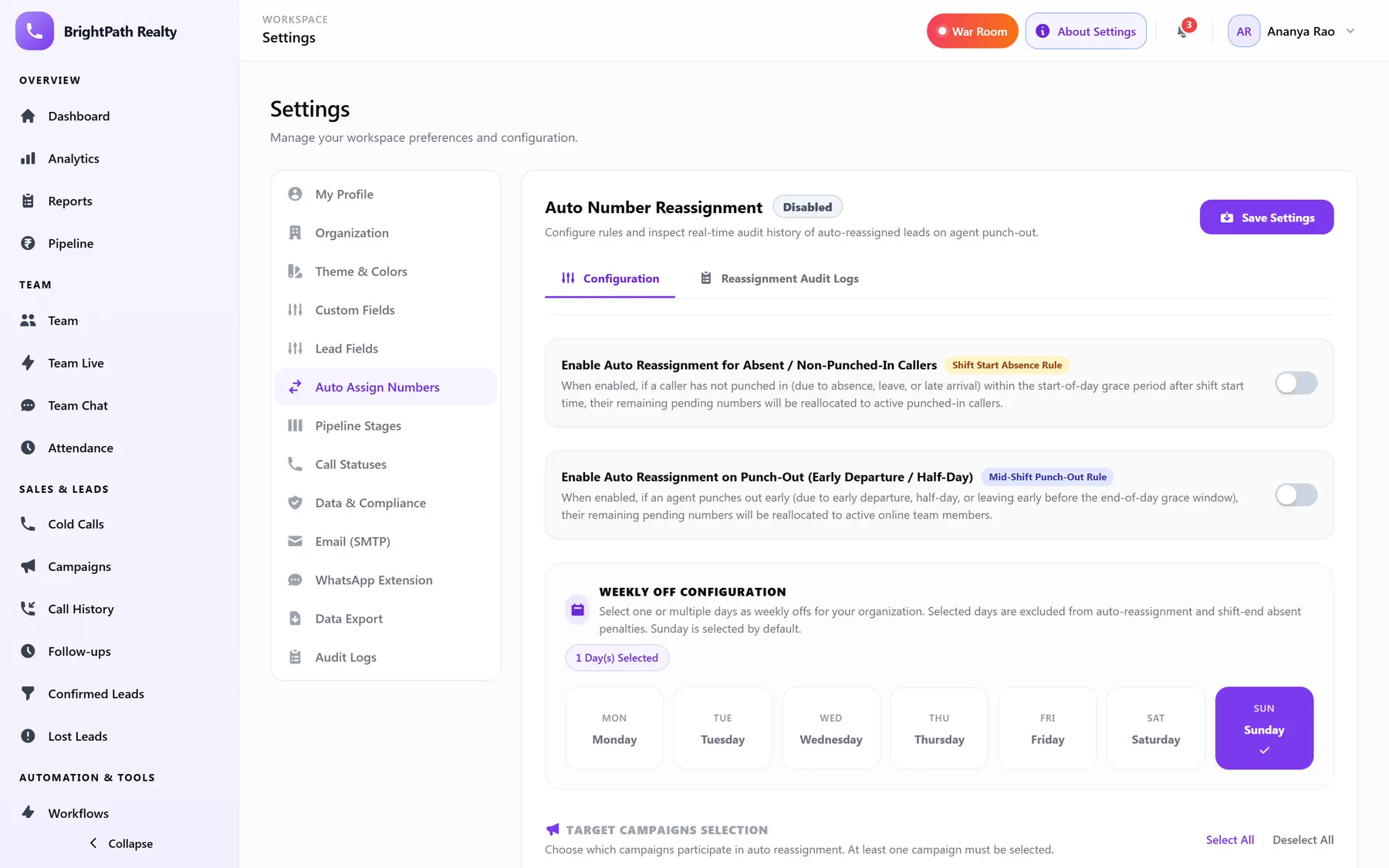
- Go to Settings → Auto Assign Numbers.
- On the Configuration tab, switch on the rules you want:
- Enable Auto Reassignment for Absent / Non-Punched-In Callers
- Enable Auto Reassignment on Punch-Out (Early Departure / Half-Day)
- Target Campaigns Selection — tick the campaigns that take part. At least one campaign must be selected. Leads in other campaigns are never moved.
- Reassignment Scope & Team Boundary — choose Team Isolated to keep leads inside the same team (an absent agent's leads go only to teammates).
- Distribution Algorithm — choose how leads are shared:
- Least-Loaded Balancing (Recommended) — gives leads first to whoever has the fewest pending leads, keeping workload even.
- Round-Robin Rotation — hands leads out in turn, regardless of how many each person already has.
- Check your Shift Working Hours & Grace Periods — see How attendance works.
- Click Save. You'll see Auto number reassignment settings updated successfully!
See what was moved
Open the Reassignment Audit Logs tab. Each row shows:
- Date & Time
- Departing Agent (From) and Receiving Agent (To)
- Campaign and Numbers Reassigned
Click View Numbers to see exactly which leads were moved. Use the search and date filters to find a particular agent or day.
Common questions
Are agents on leave included? Leads from agents who are absent, on leave or late are reassigned. Agents on leave never receive leads.
Will the lead go back to the original agent? No — once moved, the lead belongs to the new agent. You can move it back by hand from Cold Calls.
Nothing was reassigned today. Check that at least one campaign is selected, the rule is switched on, and some agents were on shift to receive the leads.