Monitoring & reports · Article 7 of 7
Export your data
Download calls, numbers, leads and follow-ups to Excel — filtered by date, team and agent.
Your data is yours. Data Export downloads it as an Excel file whenever you need it — for payroll, audits or your own analysis.
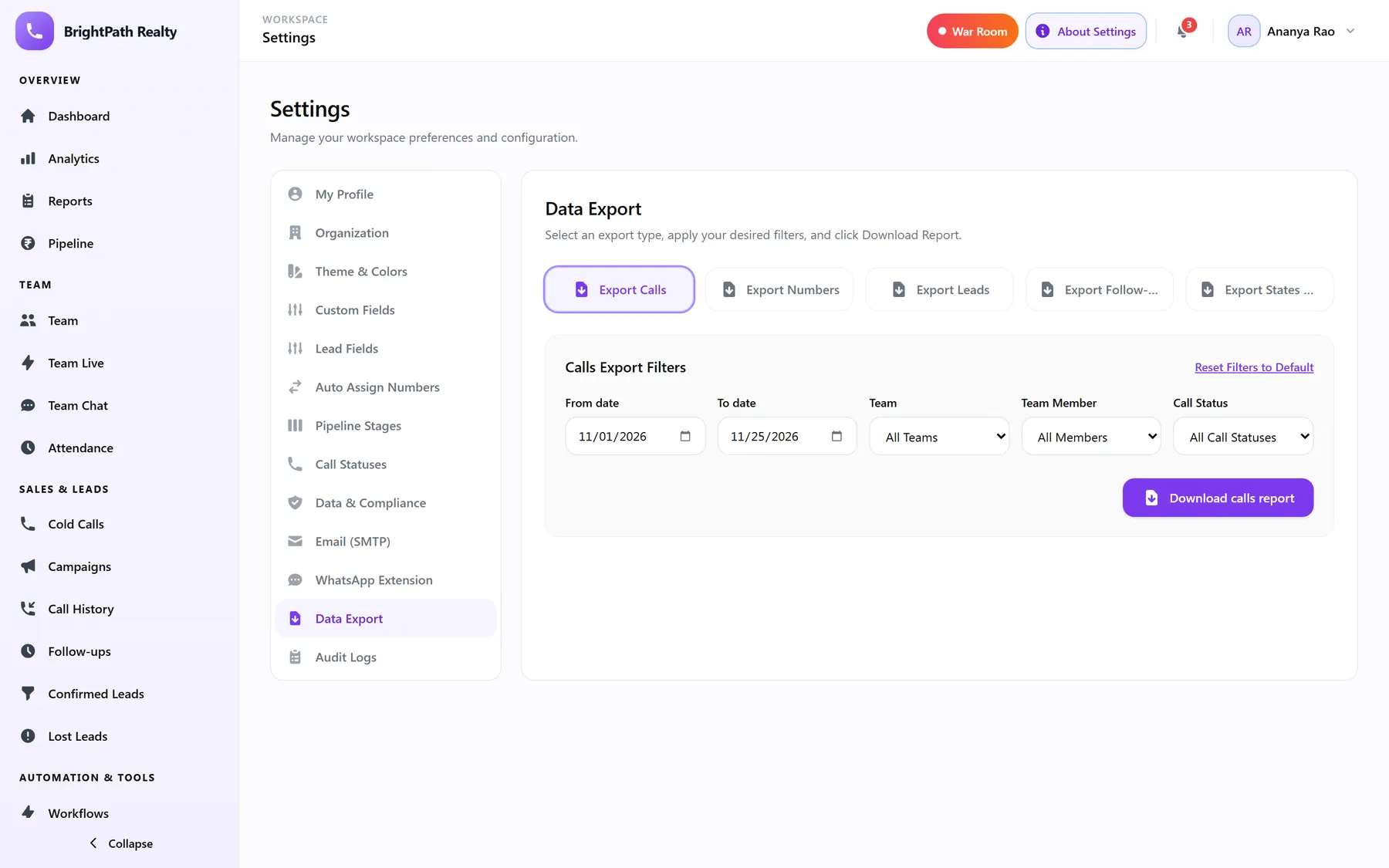
Steps
- Go to Settings → Data Export.
- Choose what to export: Export Calls, Export Numbers, Export Leads or Export Follow-ups.
- Set the filters — From date, To date, Team, Team Member and more.
- Click Download.
Quicker exports from each page
Most pages have their own Export button that downloads exactly what you're looking at:
- Call History → Export calls to Excel
- Follow-ups → Export
- Attendance → Export
- Analytics and Reports → Export CSV
- One lead → Export data in the lead details
Tip
Want to stop team leads downloading your lead list? Turn off Export for them in the permission matrix.