Attendance & shifts · Article 2 of 3
Attendance reports
See who's present today, change an agent's status, view monthly details and export attendance.
The Attendance page shows each agent's punch-in, punch-out, break time and hours worked — for today or any date range.
Open attendance
Click Attendance in the sidebar (under Team).
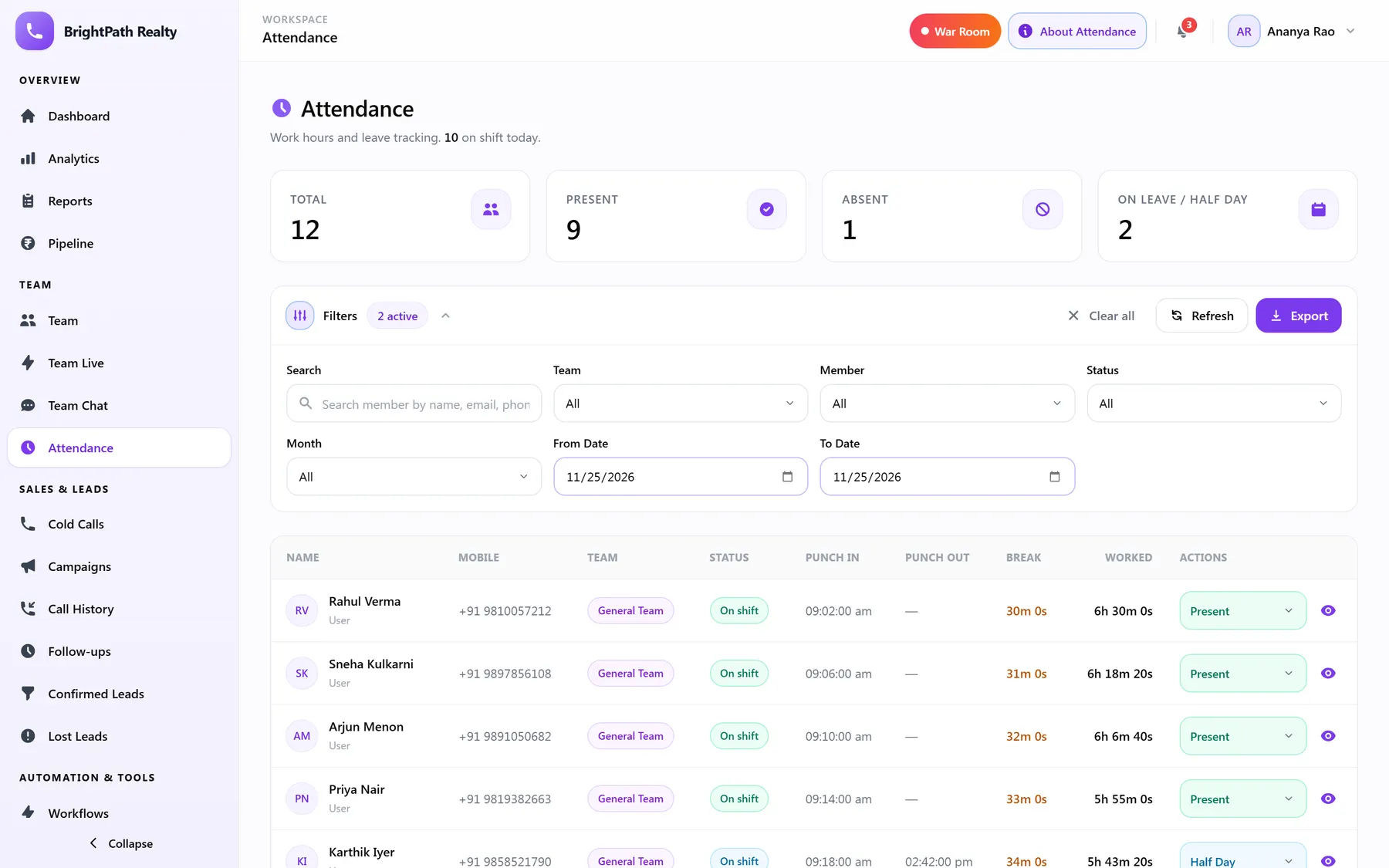
At the top you'll see four counts for the selected period: TOTAL, PRESENT, ABSENT and ON LEAVE / HALF DAY.
Filter the list
Click Filters to narrow it down:
- Search — by name, email or phone
- Team and Member
- Status — Present, Absent, Half Day, On Leave, Week Off
- Month, or From Date and To Date for a custom range
What each column means
| Column | Meaning |
|---|---|
| Status | Today's status, or the status for the selected day |
| Punch In / Punch Out | Times the agent started and ended their day |
| Break | Total break time |
| Days Summary | For a date range: days present, on leave, half day and week off |
| Worked | Total hours worked |
Change an agent's status
- Find the agent.
- Use the status dropdown in their row — choose Present, On leave, Half day, Week off or Absent.
- The change saves straight away — you'll see Status updated.
See one agent's month
Click View Monthly Details (the eye icon) on an agent's row. You'll see every day of the month with their sessions, total worked and total break. You can export this single-agent report too.
Export
Click Export (top-right) to download the attendance report for your current filters as an Excel file — useful for payroll.