Settings & security · Article 1 of 3
Your profile and organisation
Update your name, email, phone and password, and your organisation's name, GST number, logo and timezone.
My Profile
Go to Settings → My Profile.
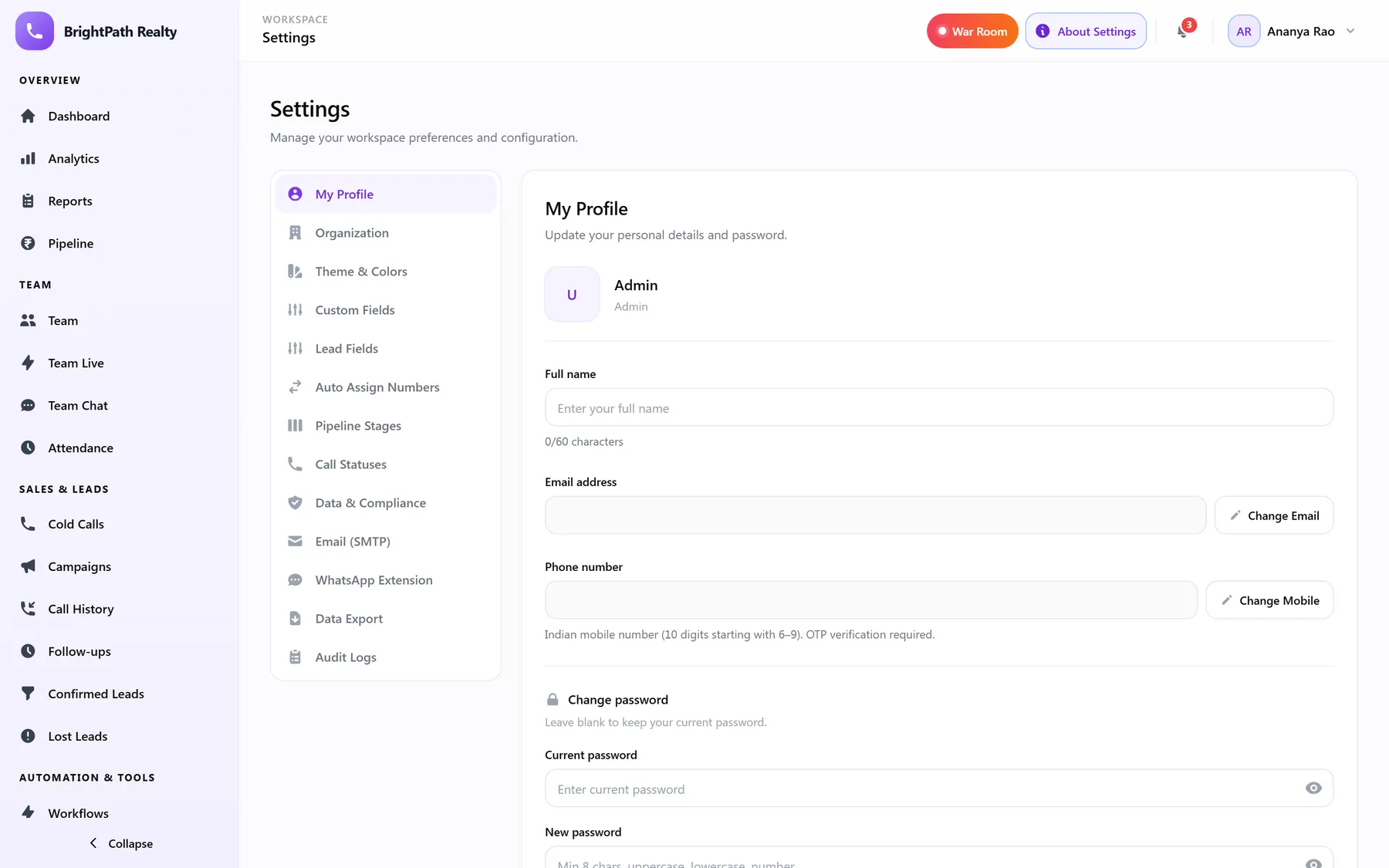
- Full name — edit and save.
- Email address — click Change Email and follow the steps to verify the new address.
- Phone number — click Change Mobile. Indian mobile number (10 digits starting with 6–9). OTP verification is required.
- Change password — enter your Current password and a New password (at least 8 characters, with an uppercase letter, a lowercase letter and a number). Leave it blank to keep your current password.
Organization
Go to Settings → Organization.
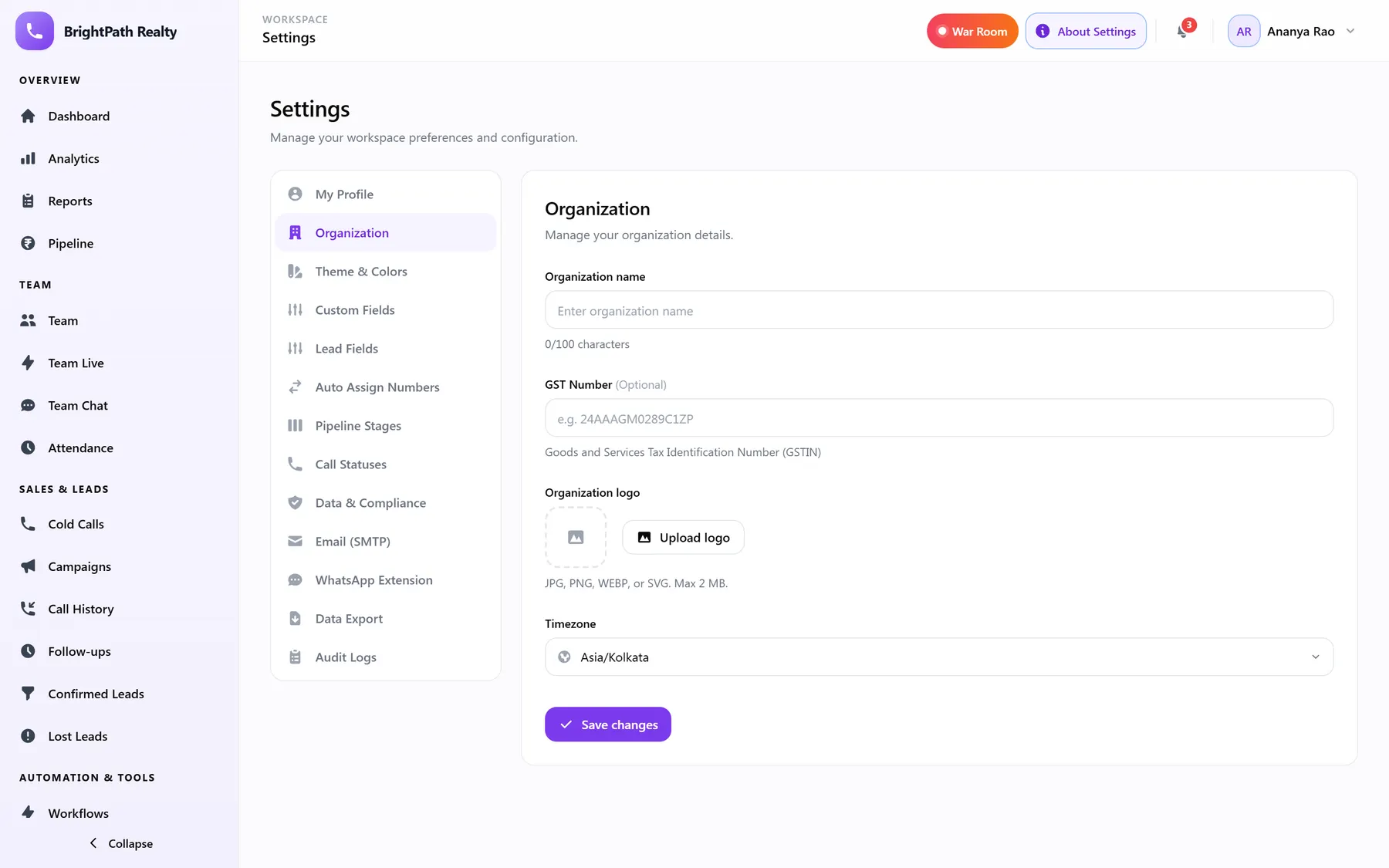
| Field | Notes |
|---|---|
| Organization name | Shown across the CRM and on invoices |
| GST Number (optional) | Your GSTIN, e.g. 29ABCDE1234F1Z5 — printed on your invoices |
| Organization logo | JPG, PNG, WEBP or SVG, up to 2 MB. Appears in the sidebar for your whole team. |
| Timezone | Used for dashboards, reports, shifts and follow-ups. For India, choose Asia/Kolkata. |
Click Save changes.