Agent workspace · Article 2 of 6
Calling your leads
For telecallers. Work through your Assigned Numbers — filter, call, use the Smart Auto Dialer, add numbers and log outcomes.
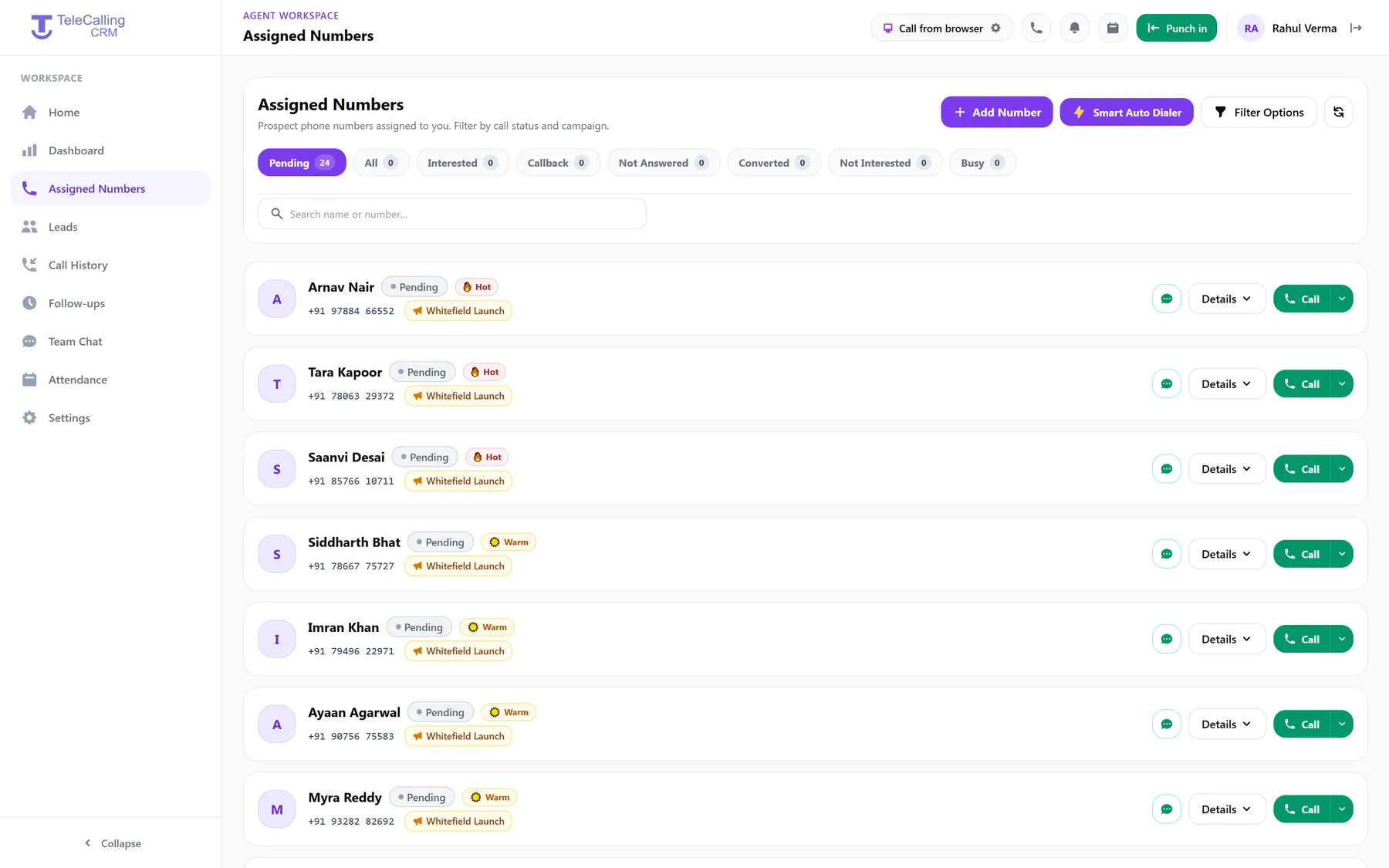
Assigned Numbers is your calling list — every number your admin has given you.
Find the right numbers
- The tabs at the top filter by call status: Pending, All, Interested, Callback, Not Answered and more — each with a count.
- Search name or number...
- Filter Options — filter by status and campaign.
Start each day with Pending — numbers you haven't called yet.
Call a number
- Click Call on a number.
- Talk to the customer. If a call script is set up, it shows beside the call.
- When the call ends, fill in the Call Summary — outcome, notes and follow-up. See Log a call outcome.
Click Details to see the lead's information, past calls and notes before you call. Use the WhatsApp icon to send a template message.
Smart Auto Dialer
Click Smart Auto Dialer to go through your list one number after another, without clicking each one. For each lead you can Call now, send a WhatsApp or SMS, or Skip. See Calling from the browser.
Add a number yourself
Got a referral or a walk-in? Click Add Number and enter the details. It's added to your queue.
Your leads
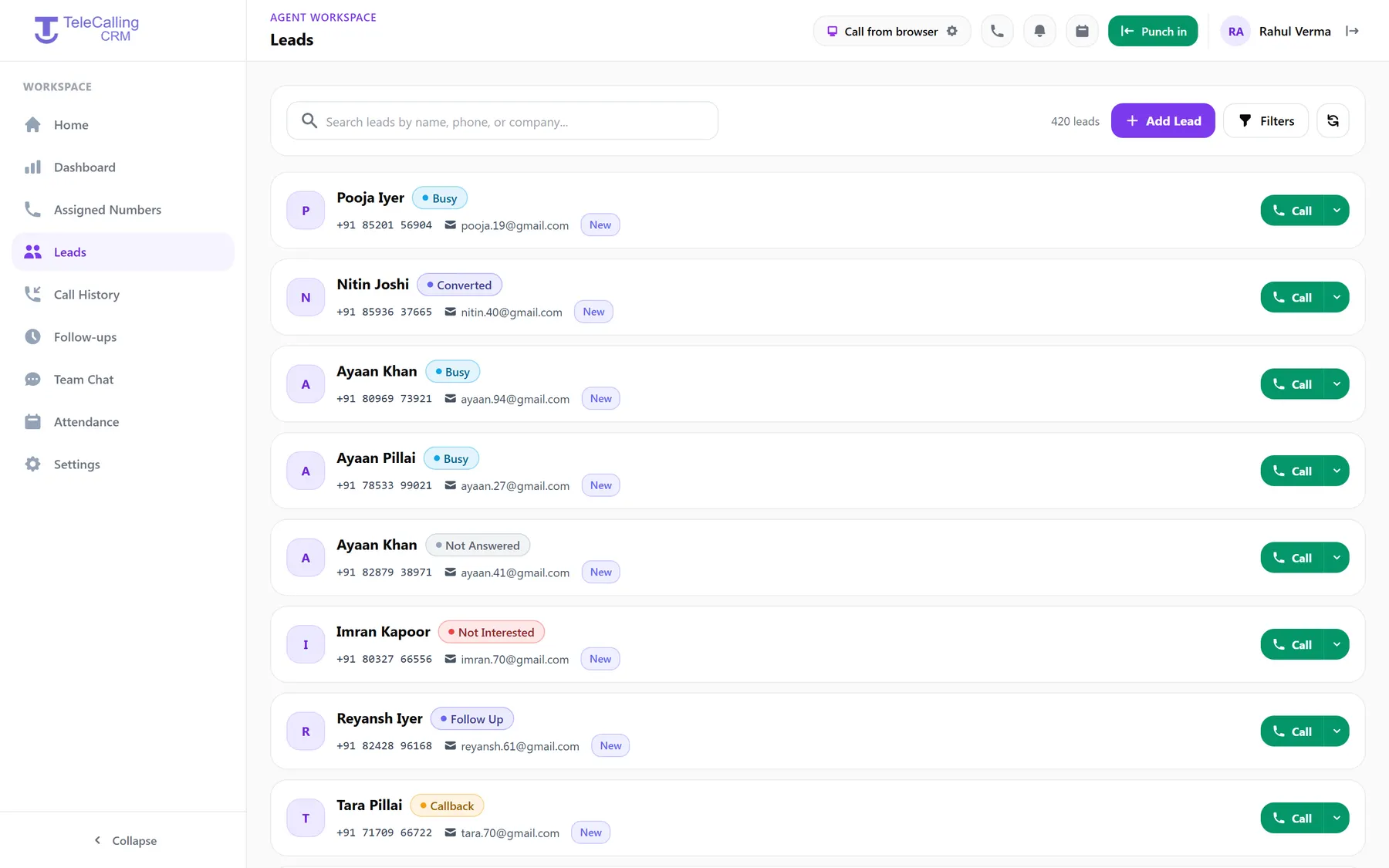
The Leads page lists everyone you've spoken to, with a Call button on each. Use Add lead for someone who's already interested.
Hand a lead to someone else
Open the lead and choose Reassign lead — pick who should get it and add a Reason (optional), e.g. Customer prefers Tamil.