Getting started · Article 5 of 7
The setup wizard
A guided, step-by-step setup — company, callers, lead sources, campaign, import, assignment and the mobile app.
The setup wizard walks you through everything needed before your first call, one screen at a time. It saves your progress as you go, so you can leave and come back.
Open it any time at admin.telecallingcrm.com/onboarding.
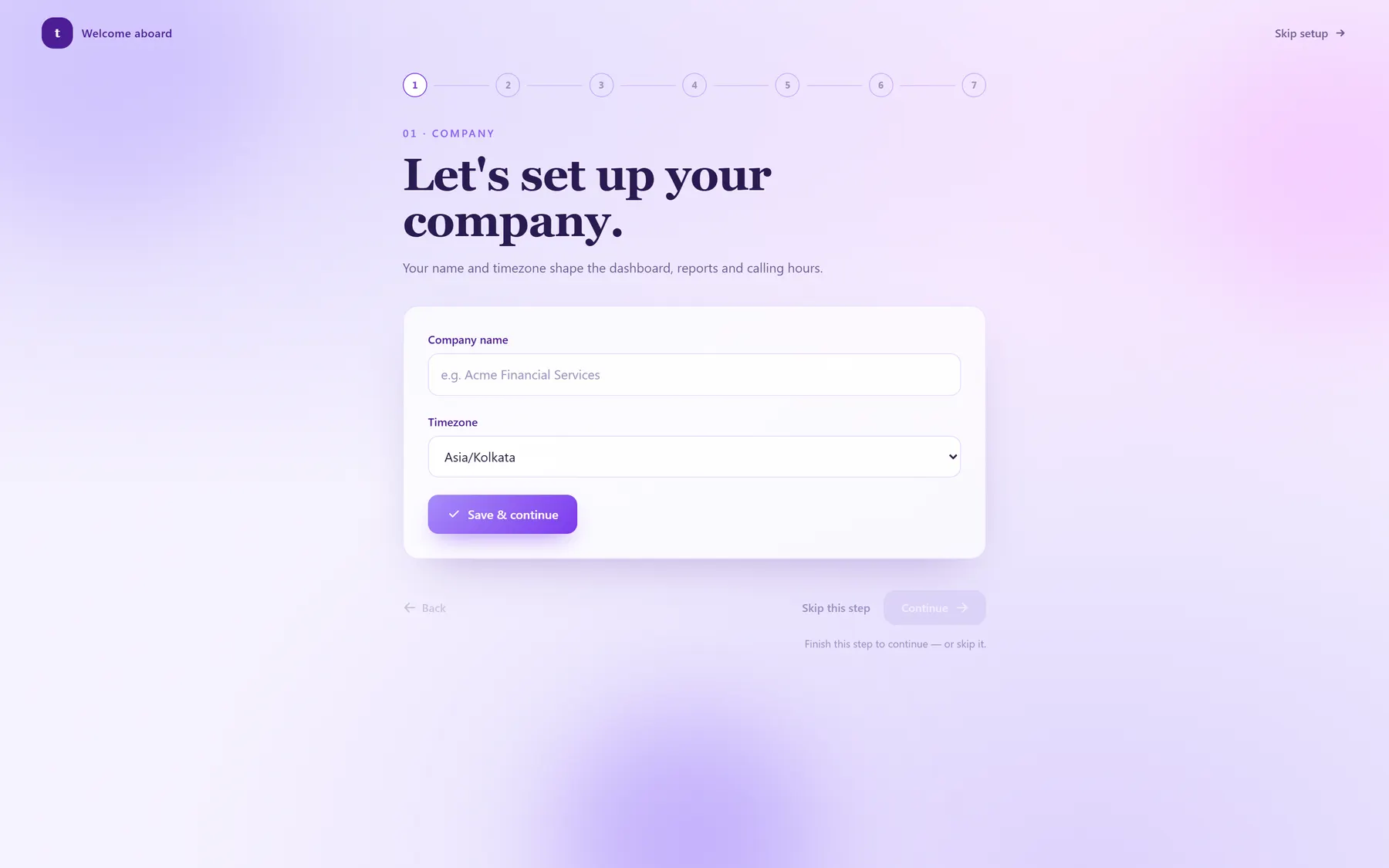
The seven steps
The first three steps are required — Continue stays disabled until you finish them (or click Skip this step). The rest are optional.
1. Company (required)
Enter your Company name and choose your Timezone. The timezone is used for the dashboard, reports and calling hours, so make sure it's right — for India, choose Asia/Kolkata.
2. Callers (required)
Add the people who make calls. For each one, fill in:
- Full name and Phone (10-digit mobile)
- Email (optional)
- Role — Caller or Team Lead
- Temporary password — at least 8 characters with one uppercase letter, one lowercase letter and one number
Each caller signs in to the mobile app with these details. You'll see Caller added after each one.
3. Lead data (required)
List where your leads come from — Facebook Ads, 99acres, Referral, Walk-in and so on. Type a source and press Enter to add it. These power the Source dropdowns across the CRM. Remove any you don't use.
4. Campaign
Create your first campaign — for example Diwali Offer 2026 — or keep the default General campaign. See Campaigns.
5. Import
Click Open import wizard to upload an Excel or CSV file. The import wizard maps your columns, custom fields, source and campaign. You can finish the import any time — see Import leads from Excel or CSV.
6. Assign
Spread pending leads across your active callers so everyone has a queue. You'll see Leads distributed when it's done. See Assign numbers to agents.
7. Mobile app
Share the app with your callers. They sign in with the phone or email and password you created in step 2. See Install the mobile app.
Power-ups
When the core steps are done, you'll see You're all set and an optional list of Power-ups. Each one opens in a new tab so your place in the wizard is saved:
| Power-up | What it sets up |
|---|---|
| Call scripts & teleprompter | Talking points your callers read on screen during the call |
| Message templates | One-tap WhatsApp, SMS and email templates |
| Messaging & channels | Connect MSG91, SMTP or WhatsApp and turn on in-app templates |
| Automation & rules | Hand leads to the right person automatically with workflows |
| Compliance | Data-protection controls such as AI call analysis |
Click Finish — go to dashboard when you're done, or No thanks, go to dashboard to skip the power-ups.
Prefer to set things up yourself? Click Skip setup at the top. Everything in the wizard can also be done from the regular pages.