Team & roles · Article 4 of 6
Managers and team leads
Set up your sales hierarchy — admins, managers, team leads and agents — so each person sees only their own team.
Bigger sales floors usually have layers: a manager looks after a few team leads, and each team lead looks after a group of agents. TeleCalling CRM mirrors this, so each person sees only the people and leads below them.
Admin
 └── Manager            (e.g. Sanjay — Sales Manager)
      ├── Team lead     (Lakshmi — 6 agents)
      └── Team lead     (Imran — 6 agents)
Managers and team leads sign in to the admin panel (not the agent app), with the pages and actions you allow.
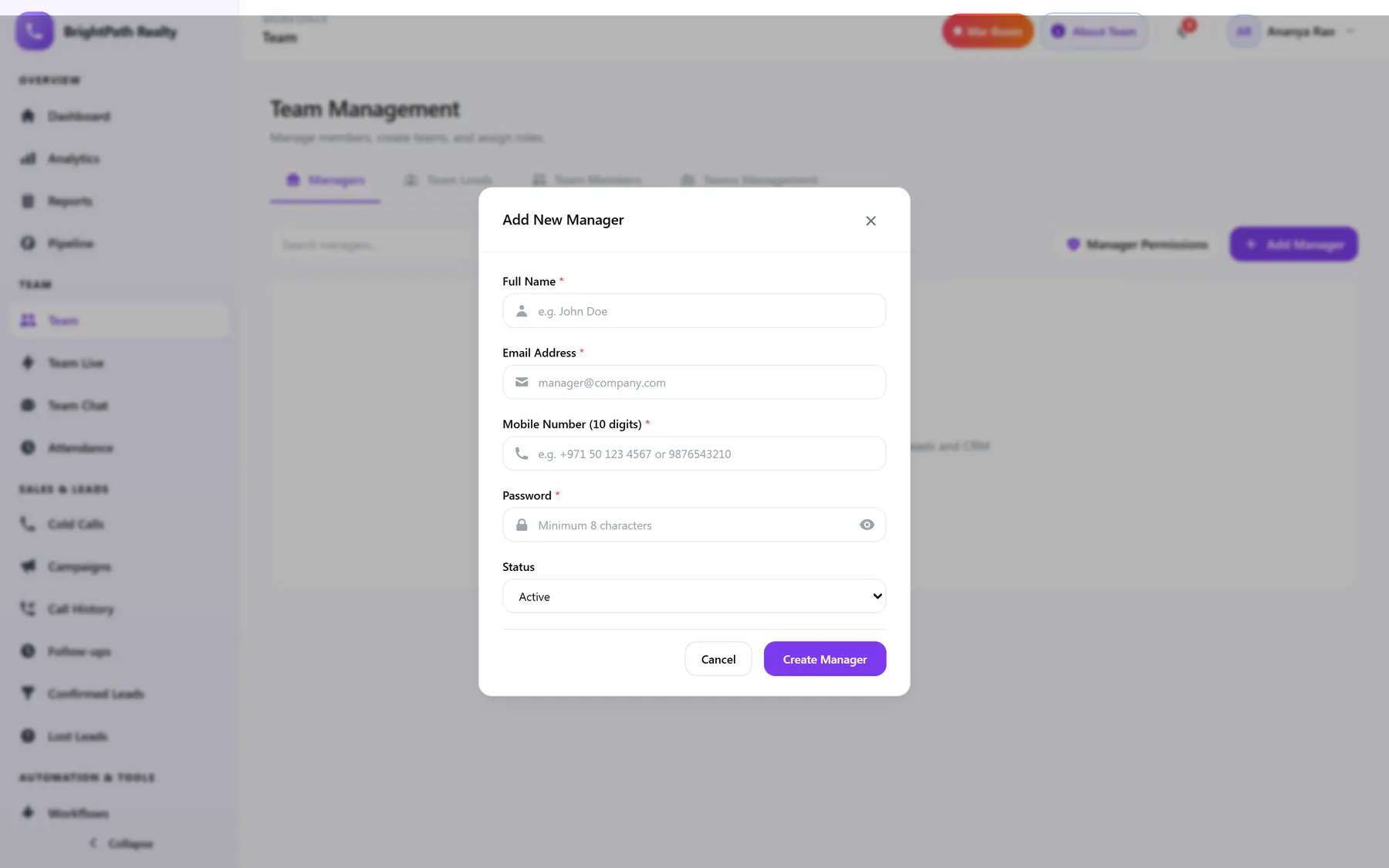
Add a manager
- Go to Team and open the Managers tab.
- Click Add Manager.
- Enter Full Name, Email Address, Mobile Number and a password (at least 8 characters).
- Leave Status as Active and save.
We email the manager their login details and the sign-in link.
Add a team lead
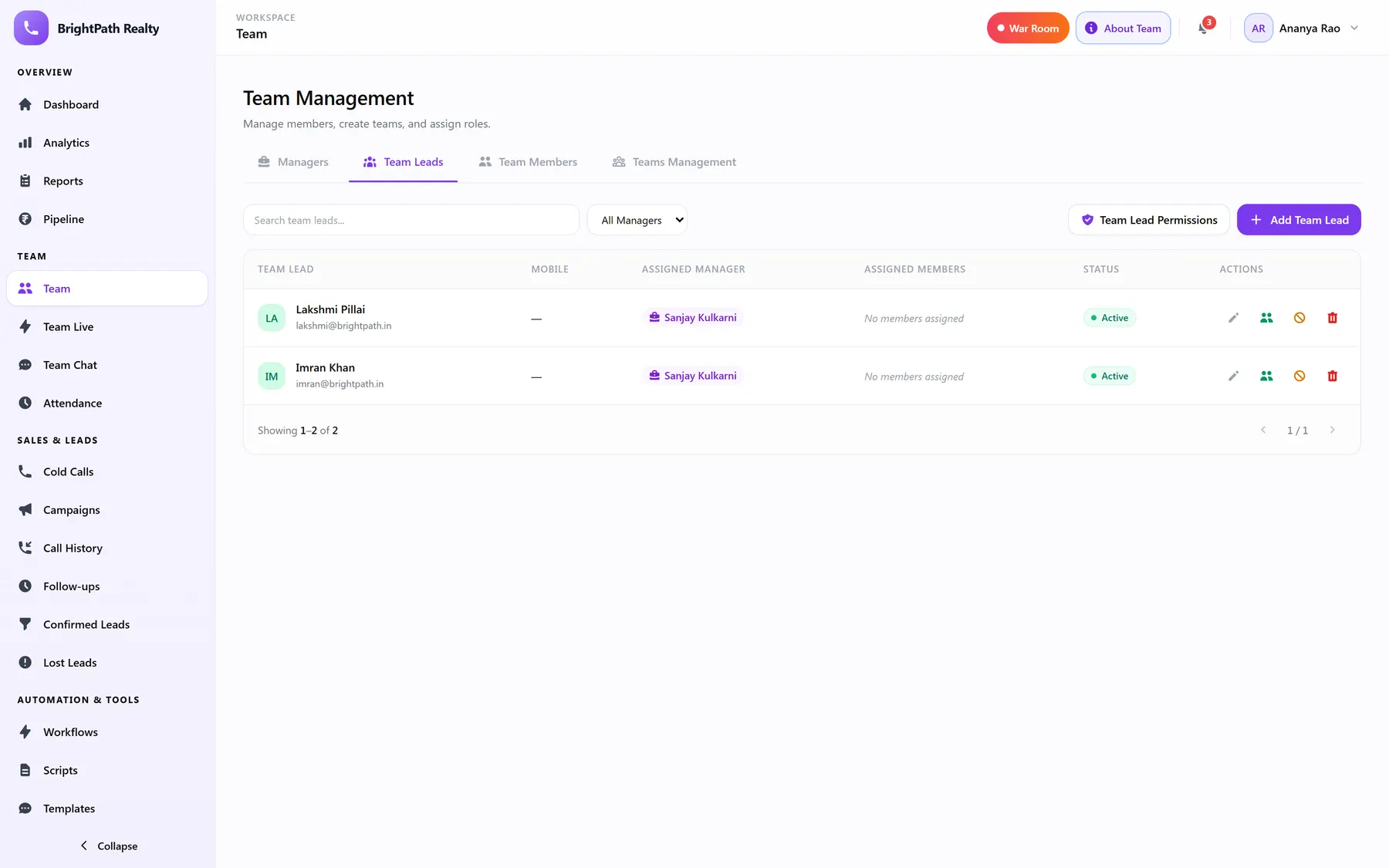
- Open the Team Leads tab and click Add Team Lead.
- Enter Full Name, Email Address, Mobile Number and a password.
- Choose Assign to Manager.
- Save.
Connect agents to their team lead and manager
From the Team Leads tab: click Assign Team Members on a team lead's row and tick their agents.
From the Managers tab: click Assign Team Leads on a manager's row.
For several agents at once: in Team Members, tick the agents, then click Assign Hierarchy and choose the manager and team lead.
What managers and team leads can see
- Their people only — a manager sees their team leads and all agents under them; a team lead sees only their own agents.
- Hierarchy tabs — on pages like Dashboard, Cold Calls and Follow-ups they can switch between "All" and each person below them.
- A shorter menu — managers and team leads can use only these pages, and only the ones you switch on in the permission matrix:
- Overview: Dashboard, Analytics
- Team: Team (called Team Members for team leads), Team Live, Team Chat, Attendance
- Sales & Leads: Cold Calls, Campaigns, Call History, Follow-ups, Confirmed Leads, Lost Leads
Edit, suspend or remove
Use the icons in the Actions column: Edit Manager / Edit Team Lead, change Status to Suspended, or Delete.
Pipeline, Reports, Workflows, Scripts, Templates, WhatsApp, Integrations, Cloud Calling, Billing, Support and Settings are admin-only.
Managers and team leads use a seat, just like agents. Your plan's seat count covers every active agent, team lead and manager together.