Team & roles · Article 5 of 6
The permission matrix
Decide exactly which pages and actions managers and team leads can use — view, create, edit, delete, upload, export.
The permission matrix controls what managers and team leads can do in the admin panel. Settings apply to all managers (or all team leads) in your organisation at once.
The matrix is for managers and team leads in the admin panel. Agents always work only their own assigned leads.
Open the matrix
- Go to Team.
- On the Managers tab, click Manager Permissions — or on the Team Leads tab, click Team Lead Permissions.
- Use the Managers / Team Leads switch at the top to move between the two.
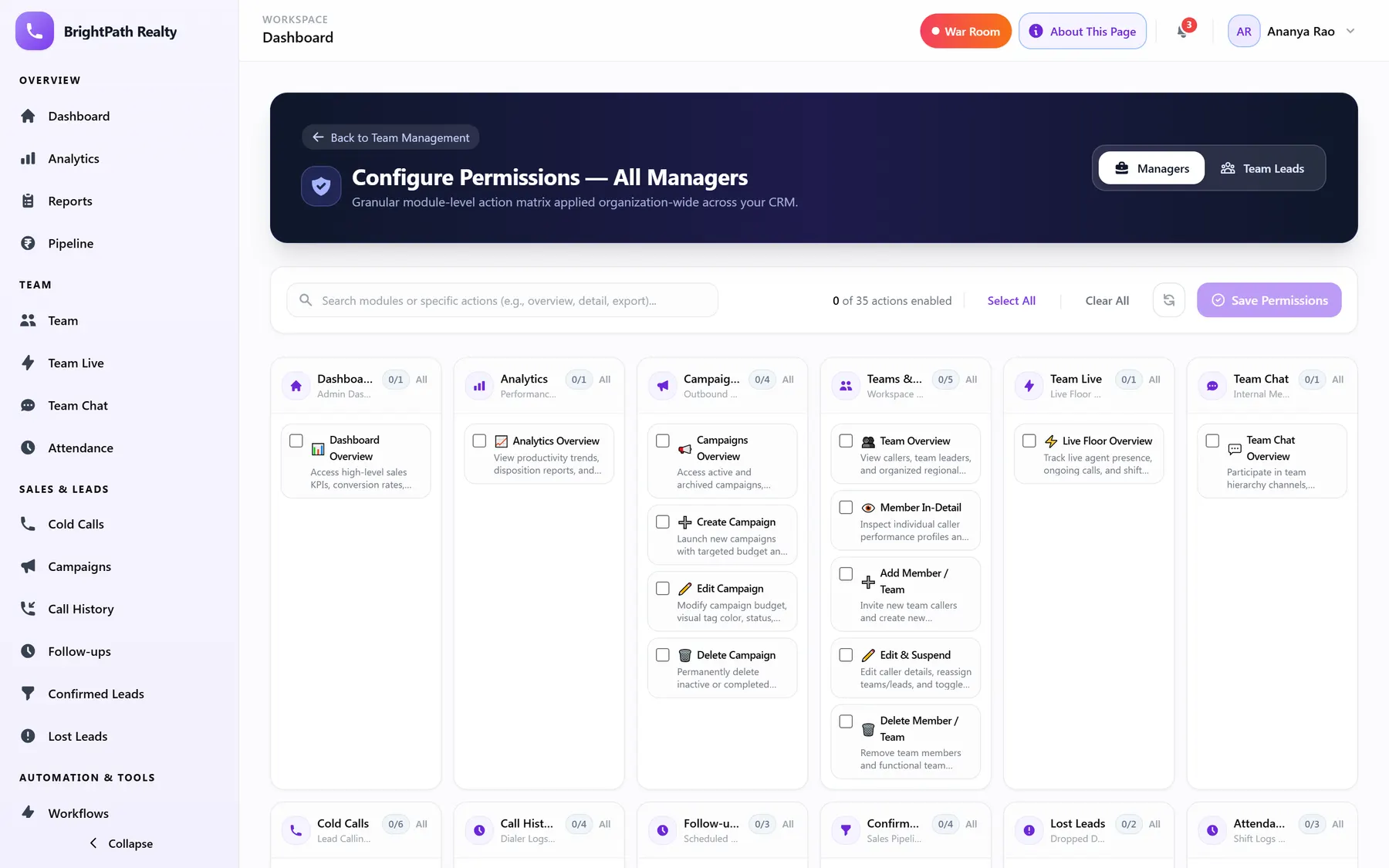
How it works
Each card is one area of the CRM. Inside it, tick the actions that role may perform:
| Action | What it allows |
|---|---|
| Overview | See the page at all |
| View | Open individual records (e.g. a call's details, a member's profile) |
| Create | Add new records (e.g. add a cold call, create a campaign) |
| Edit | Change records (e.g. edit lead info, reschedule a follow-up) |
| Delete | Delete records |
| Upload | Import files (e.g. upload numbers) |
| Export | Download data |
The areas you can control
Dashboard · Analytics · Campaigns · Teams & Members · Team Live · Team Chat · Cold Calls · Call History · Follow-ups · Confirmed Leads · Lost Leads · Attendance
Change permissions
- Tick or untick the actions. Use Select All or Clear All on a card, or the search box to find an action (e.g. "export").
- A bar appears — Unsaved Permission Changes.
- Click Save Permissions, or Discard to undo.
Changes apply the next time each manager or team lead loads a page.
Recommended starting point
| Role | Suggested access |
|---|---|
| Manager | Everything except Delete on members and campaigns |
| Team lead | Overview + View on most pages; Edit on Cold Calls and Follow-ups; no Delete; no Export |
Turning off Export stops people downloading your full lead list — a good idea for team leads.