Leads & numbers · Article 3 of 10
Import leads from Excel or CSV
Upload thousands of numbers at once — map columns, choose a campaign and assign them in one go.
The import wizard brings a whole spreadsheet into TeleCalling CRM. It matches your columns to CRM fields, removes duplicates, skips Do-Not-Call numbers and can assign every row to your agents as it imports.
Before you start
- Your file can be Excel (.xlsx) or CSV, up to 15 MB.
- It needs at least one column with phone numbers. Everything else (name, email, city…) is optional.
- Not sure about the layout? Click Download sample template in the wizard and copy your data into it.
- Files with more than 5,000 rows import in the background — you can keep working.
Steps
1. Open the wizard
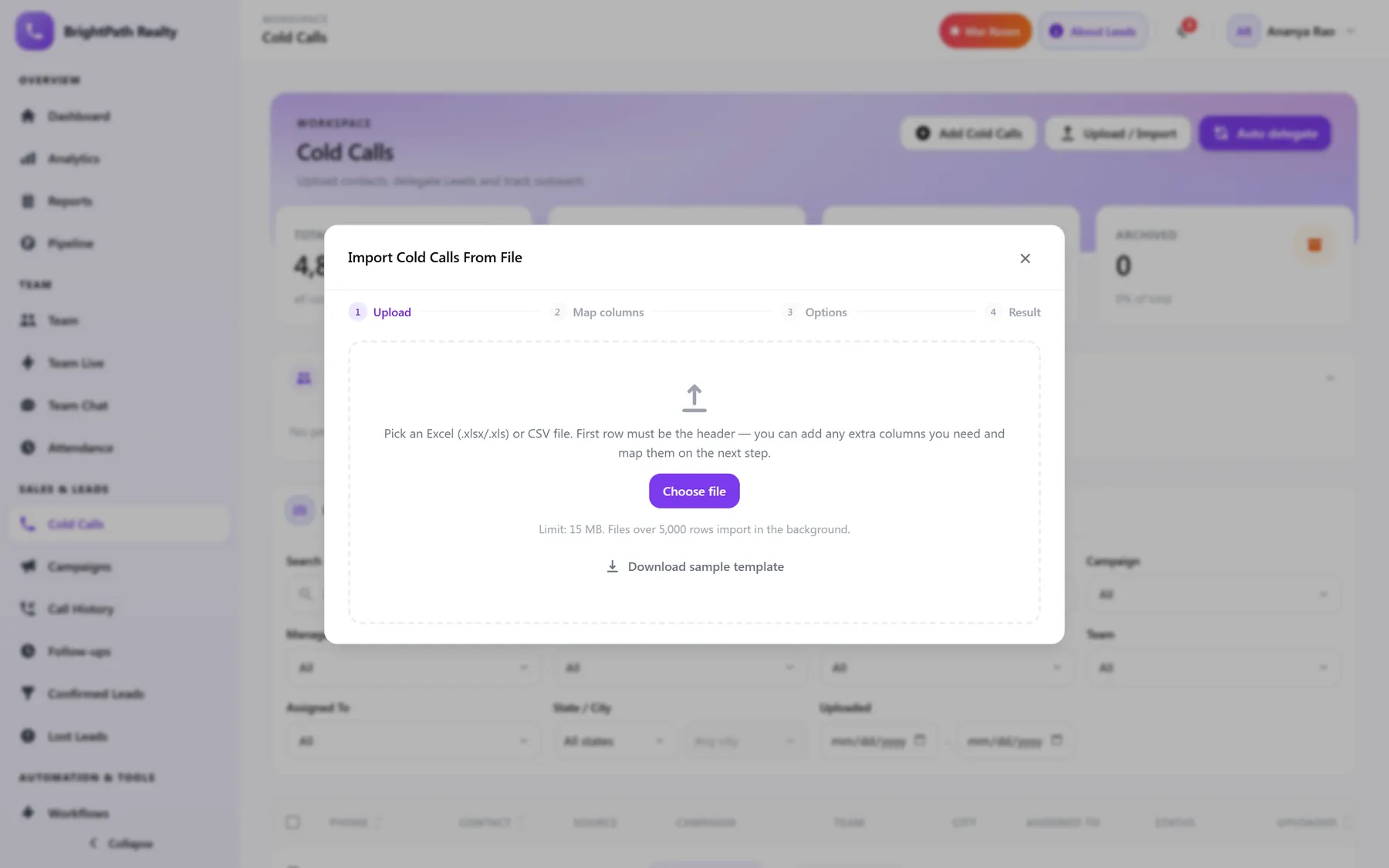
Go to Cold Calls and click Upload / Import. (You can also click Import on the Confirmed Leads page.)
2. Upload your file
Drag the file in, or click to choose it.
3. Map your columns
For each Excel header, pick the matching CRM field — for example Mobile → Phone number, Customer Name → Contact name.
- You must map one column to Phone number before you can continue.
- Two columns can't go to the same CRM field.
- Use Custom fields for anything specific to your business, such as Budget or Property type. Create them first — see Lead fields.
4. Resolve unknown values
If a column has values the CRM doesn't know yet (for example a new source name), the wizard asks you what to do with them.
5. Choose the import settings
| Setting | What to choose |
|---|---|
| Import as | Numbers (cold pool to dial) for a fresh calling list, or Leads (already qualified — show in pipeline) for people you've already spoken to |
| Assignment | Round-robin across active callers, Leave unassigned, or assign to specific users, teams, managers or team leads |
| Source | Where these leads came from |
| Campaign | All rows are tagged to this campaign. Defaults to General |
| Default stage and Default score | Starting stage and Hot / Warm / Cold |
| When a phone number already exists | Skip (keep existing) or Update its details from the file |
6. Import
Click Next to start. You'll see a summary when it's done:
| Result | Meaning |
|---|---|
| Imported | New numbers added |
| Updated (existing) | Existing numbers updated from the file |
| Duplicates in file | The same number appeared more than once in your file |
| Already in CRM | Skipped because the number already exists |
| On DNC list | Skipped because the number is Do-Not-Call |
| Invalid phone | Not a valid phone number |
| Validation errors / Need review | Rows with a problem in another field |
Click Download error report (.csv) to see exactly which rows were skipped and why. Fix them in your file and import just those rows again.
For a big file, click Close & let it run. The import keeps going in the background, and this panel updates when it finishes.
Common questions
Can I import Indian numbers with +91 or 0 in front? Yes. Spaces and dashes are removed, and Indian mobiles written with +91, 91 or a leading 0 are all saved as the same 10-digit number. International numbers need the + and country code, e.g. +971 50 123 4567.
The import is "Still running". It's a big file. Check the import again shortly — it keeps processing in the background.
Can I undo an import? Not in one click. Filter Cold Calls by the campaign or Uploaded date, select the rows and delete them.